Create a team
For agents and loan officers · 4 min
Start a team, invite your teammates, and set who can do what. Each person keeps their own account, plan, contacts and deals.
Watch
Or read it step by step
-
Team setup
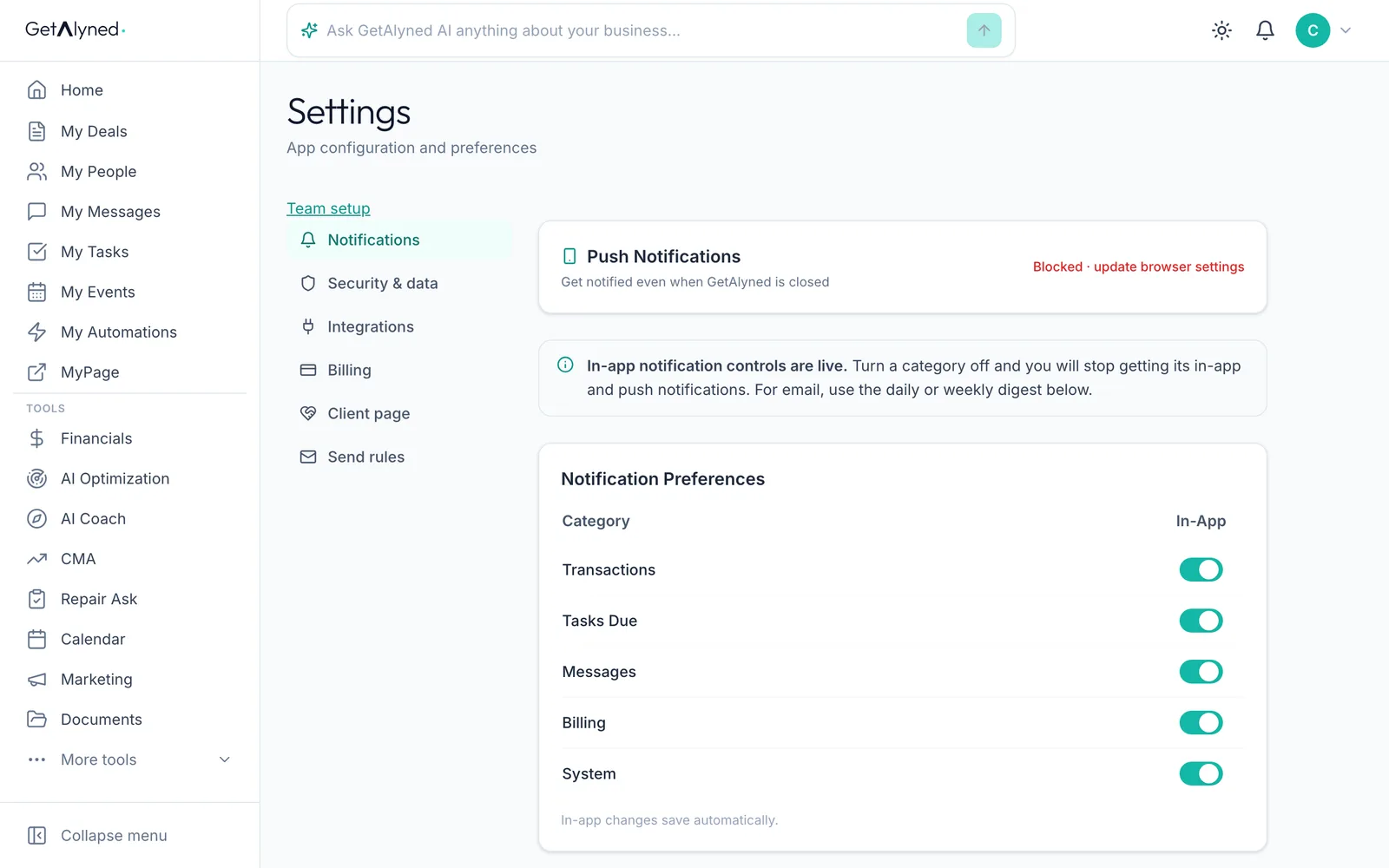
Teams start in Settings. Team setup is the link at the top.
-
Create a team
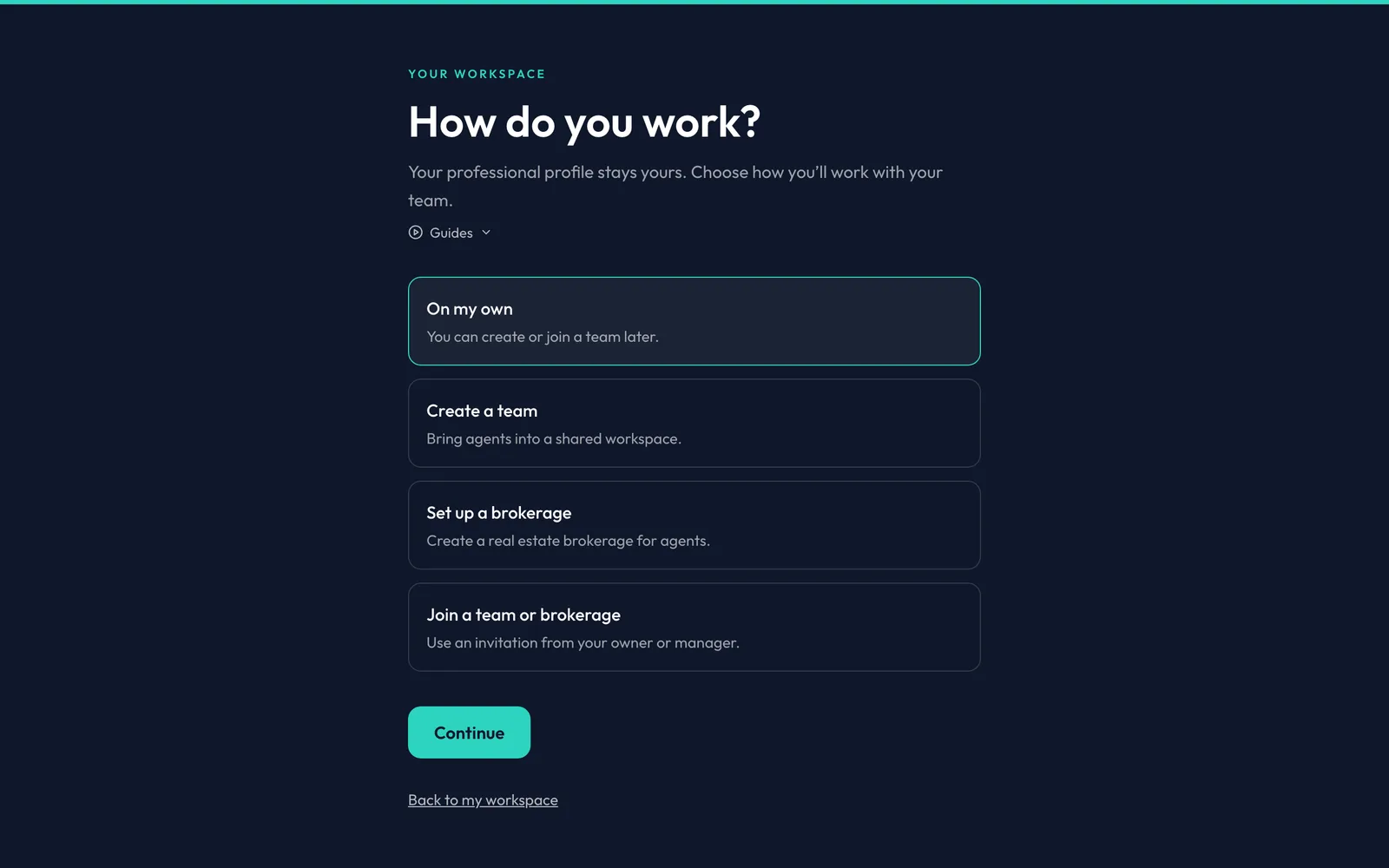
Create a team brings agents into a shared workspace. Your own profile stays yours, and you can come back to this later.
-
Name it
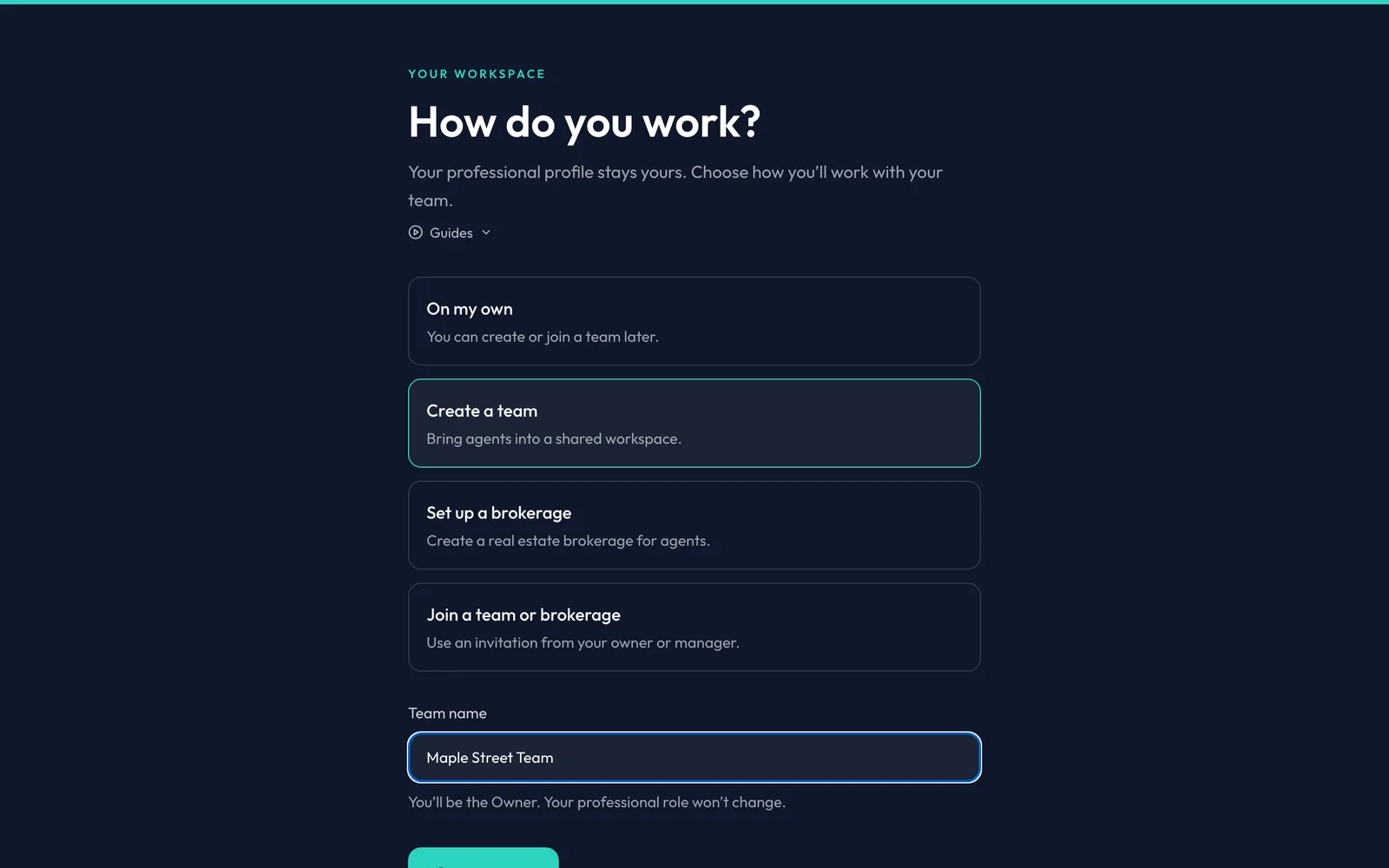
Give the team a name. You become its Owner, and your own role and account don't change.
-
Create team
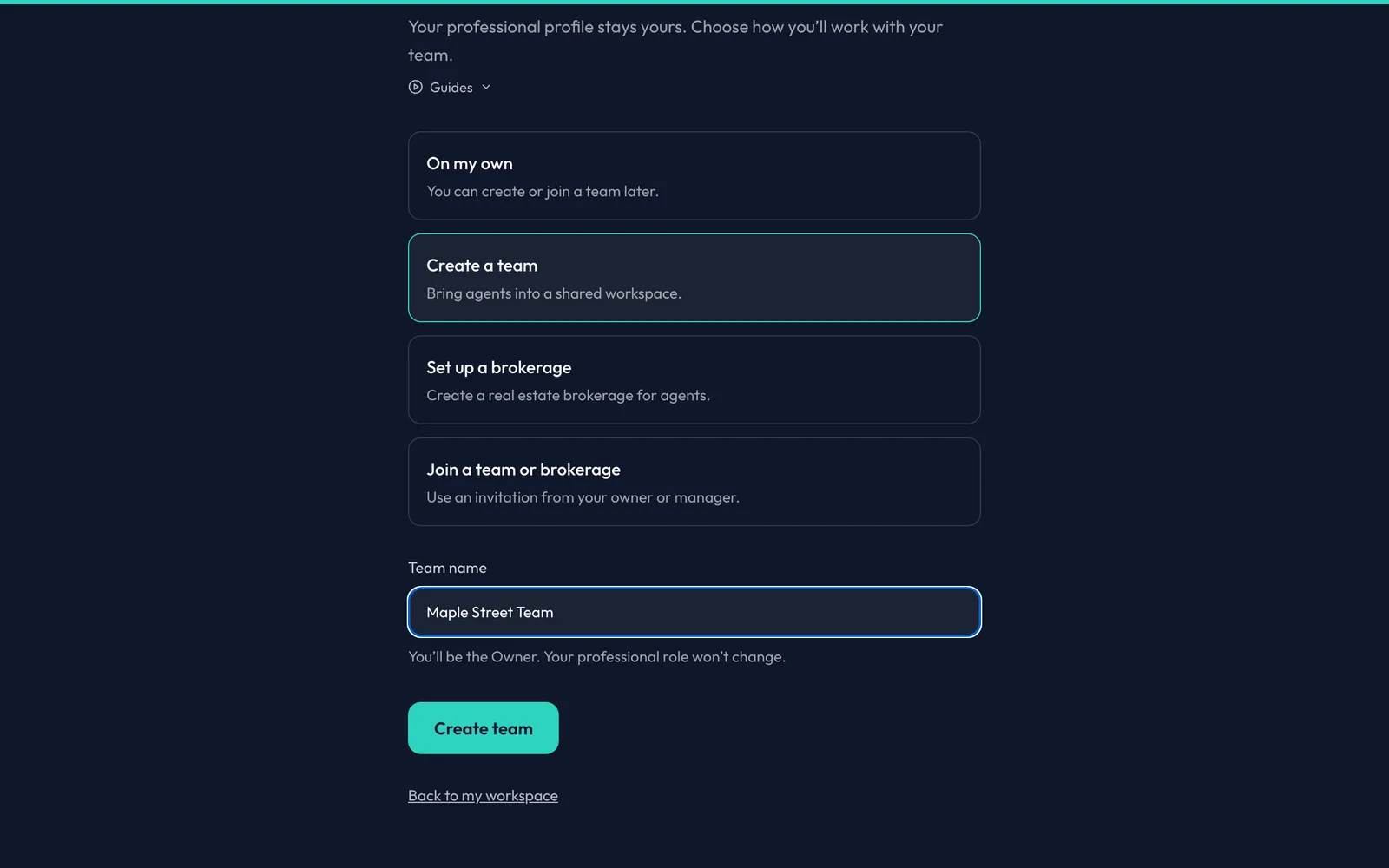
Click Create team. A team starts right away, with no review. Each member keeps their own plan, and you pay nothing extra for anyone.
-
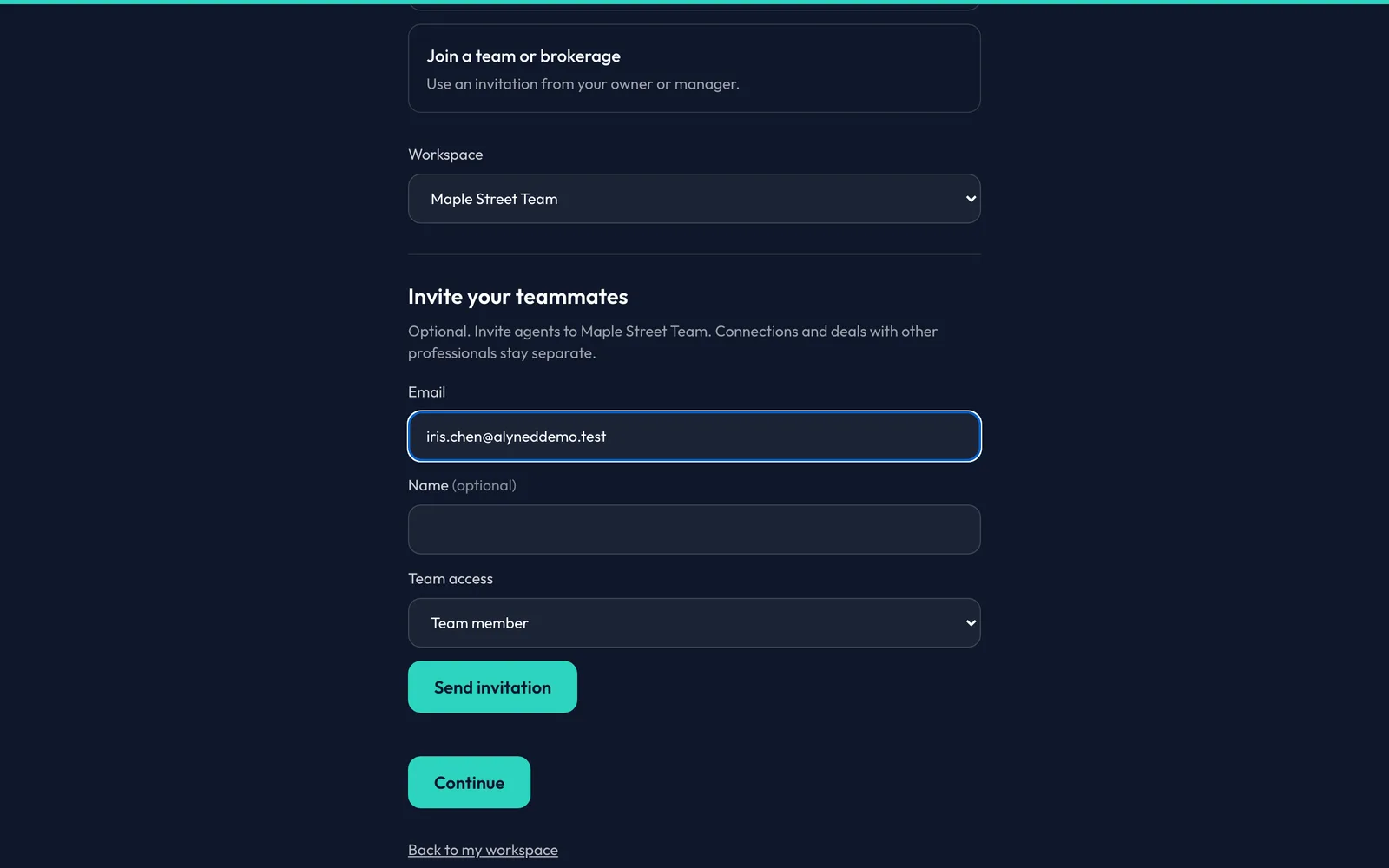
Invite teammates
Invite teammates here or later. Pick their access: Team member or Admin. Only the owner and Admins see what teammates share.
-
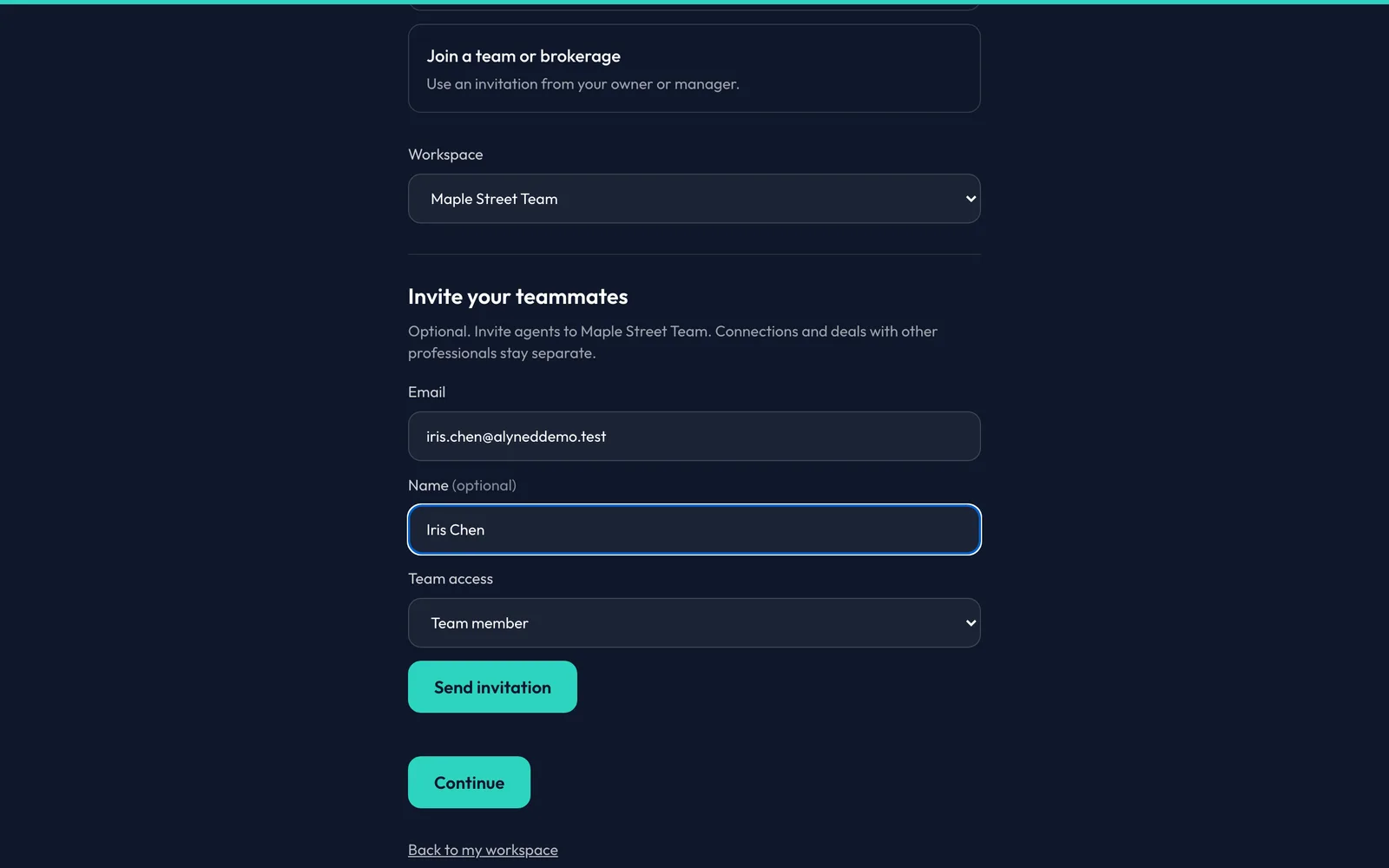
Send it
Click Send invitation. It lasts 7 days.
-
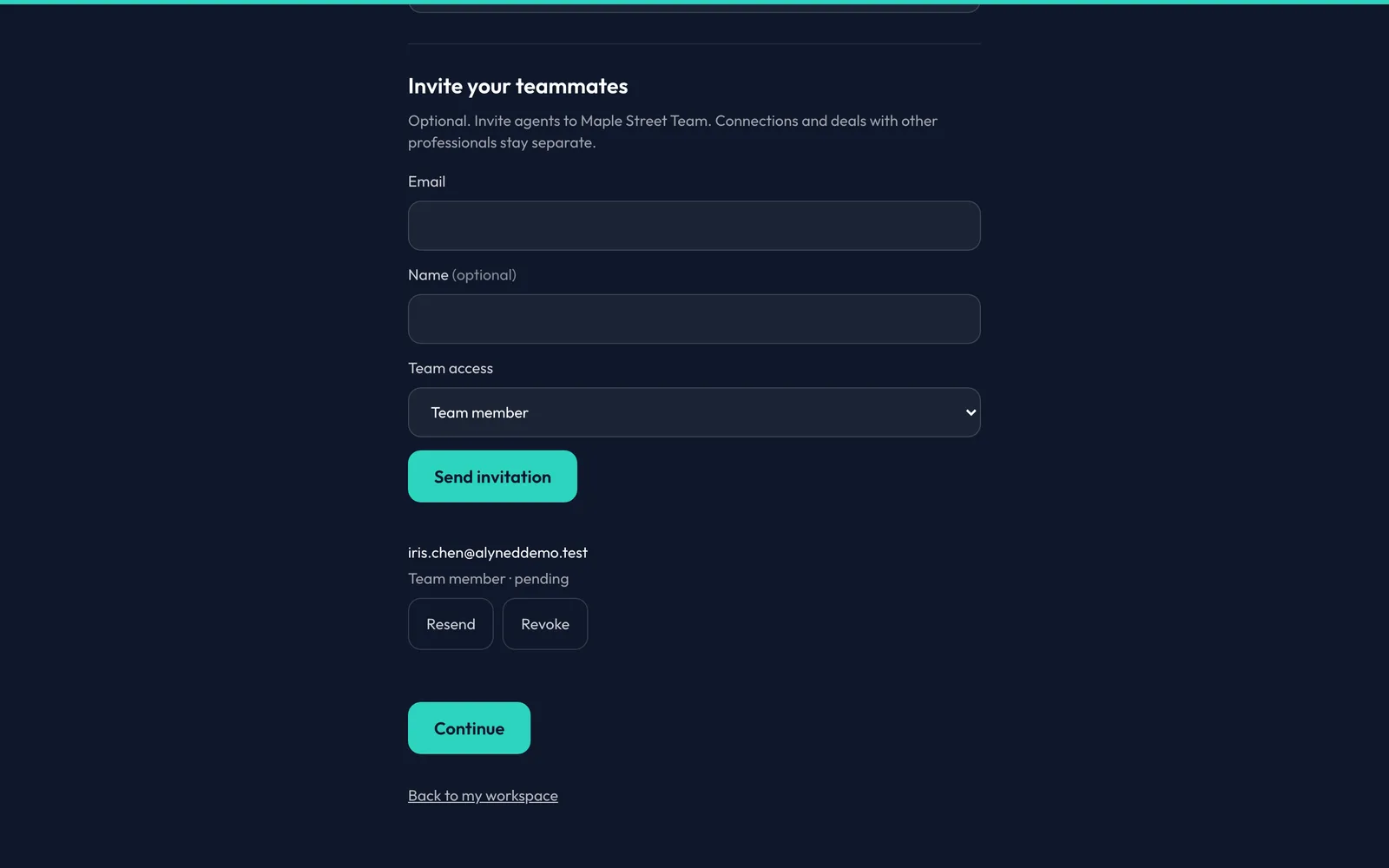
Continue
The invite waits under your team. Continue takes you to your dashboard.
-
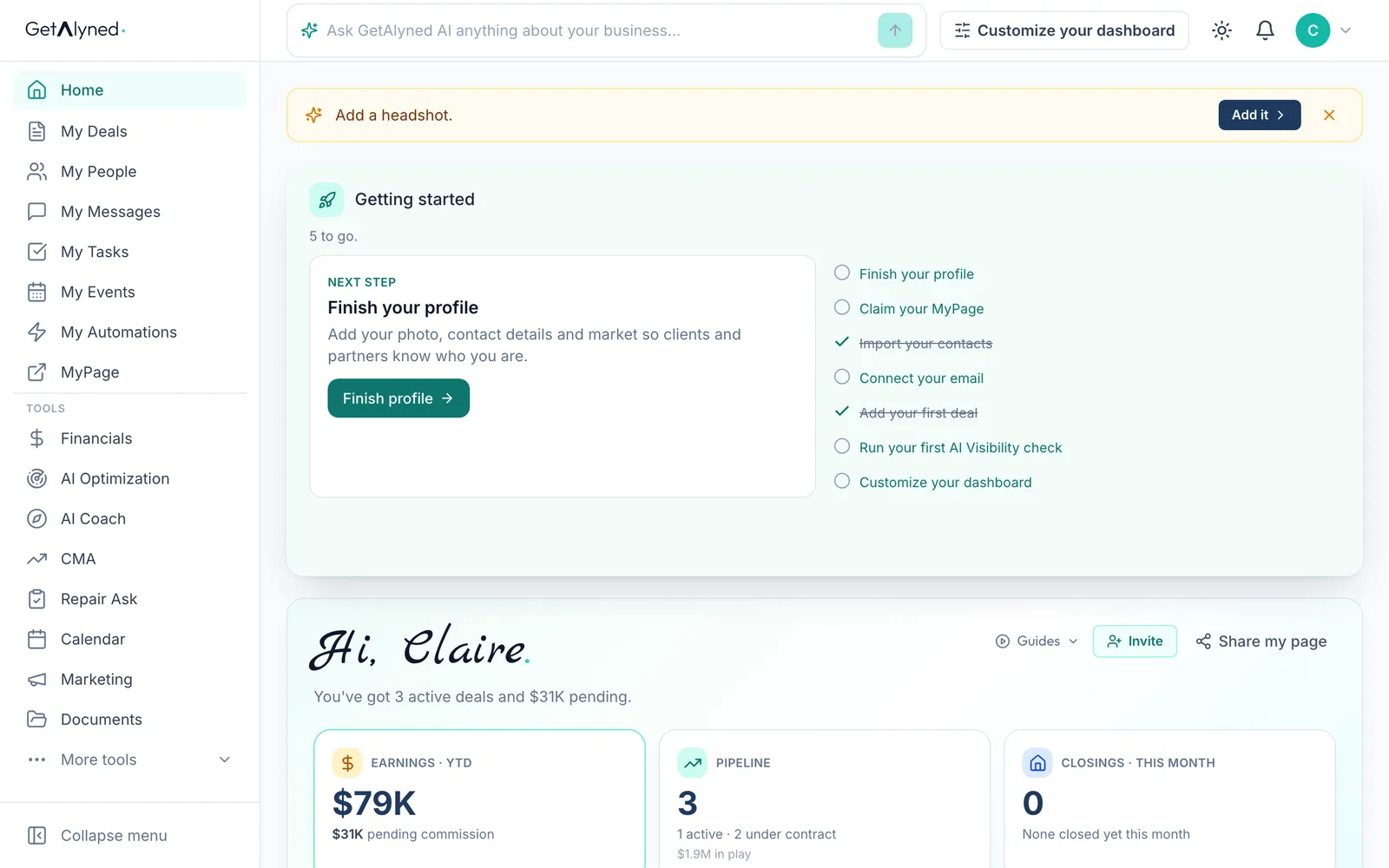
More tools
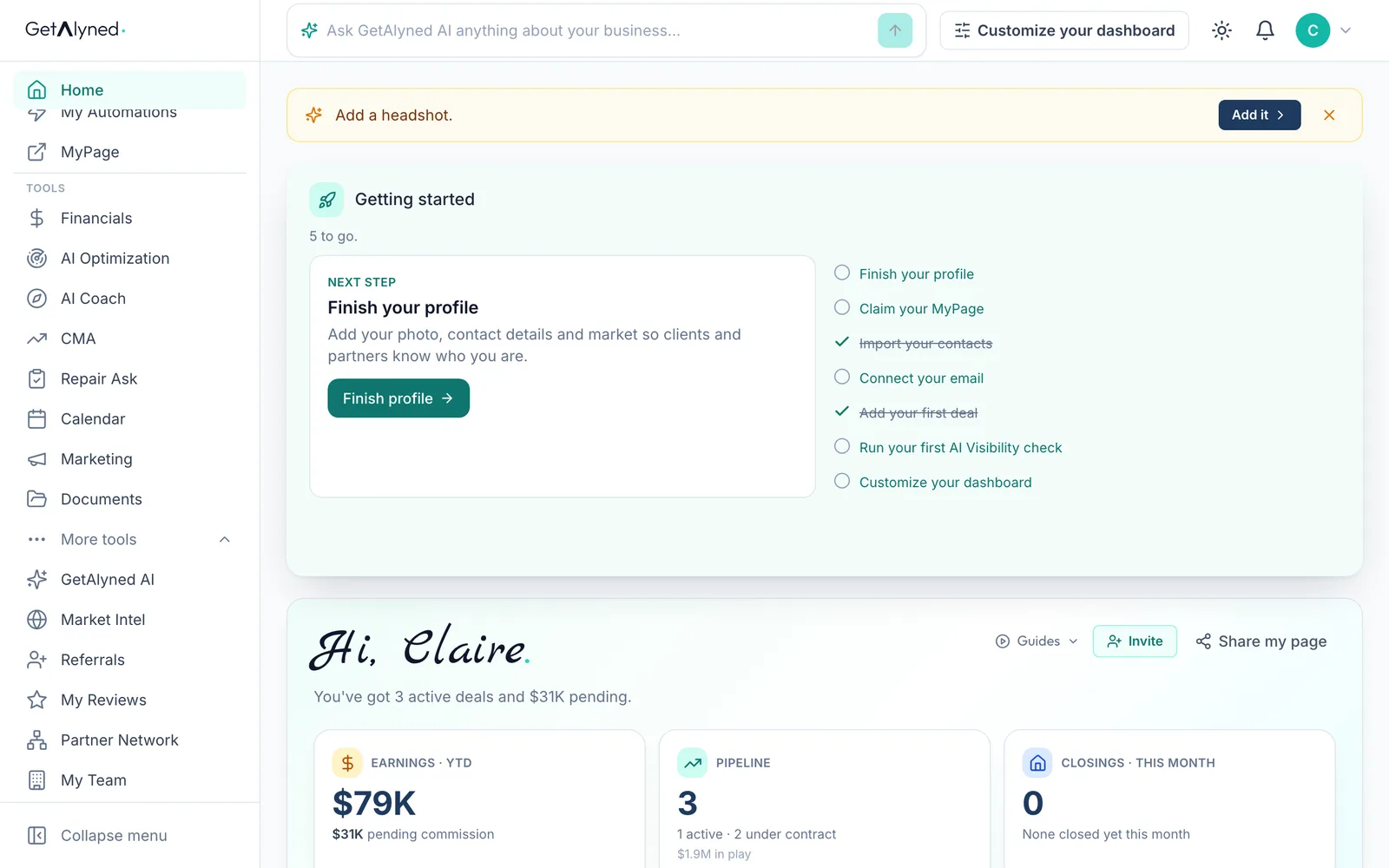
On a computer, your team lives under More tools in the menu.
-
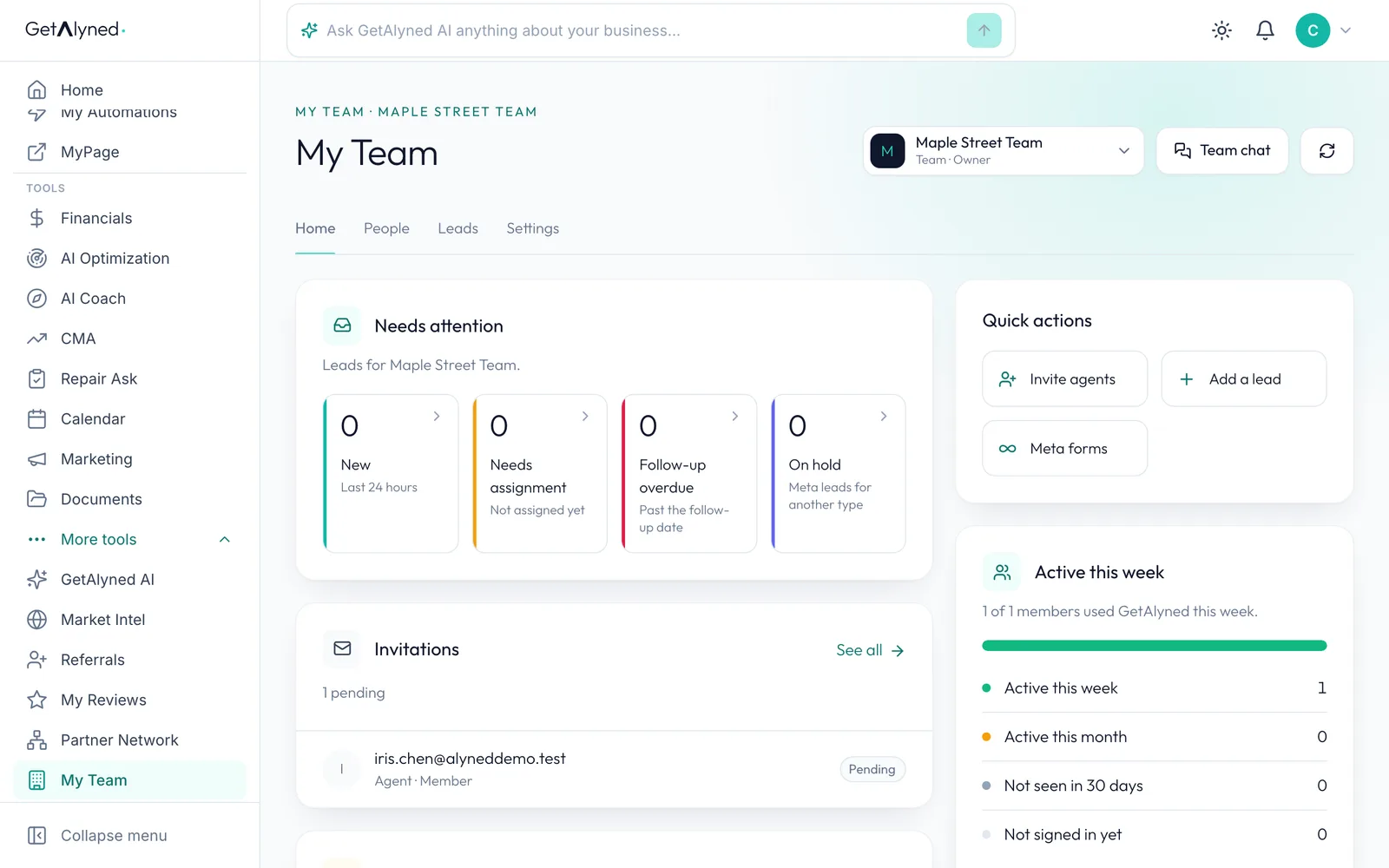
My Team
My Team shows up once you belong to a team. Only people on a team see it.
-
People
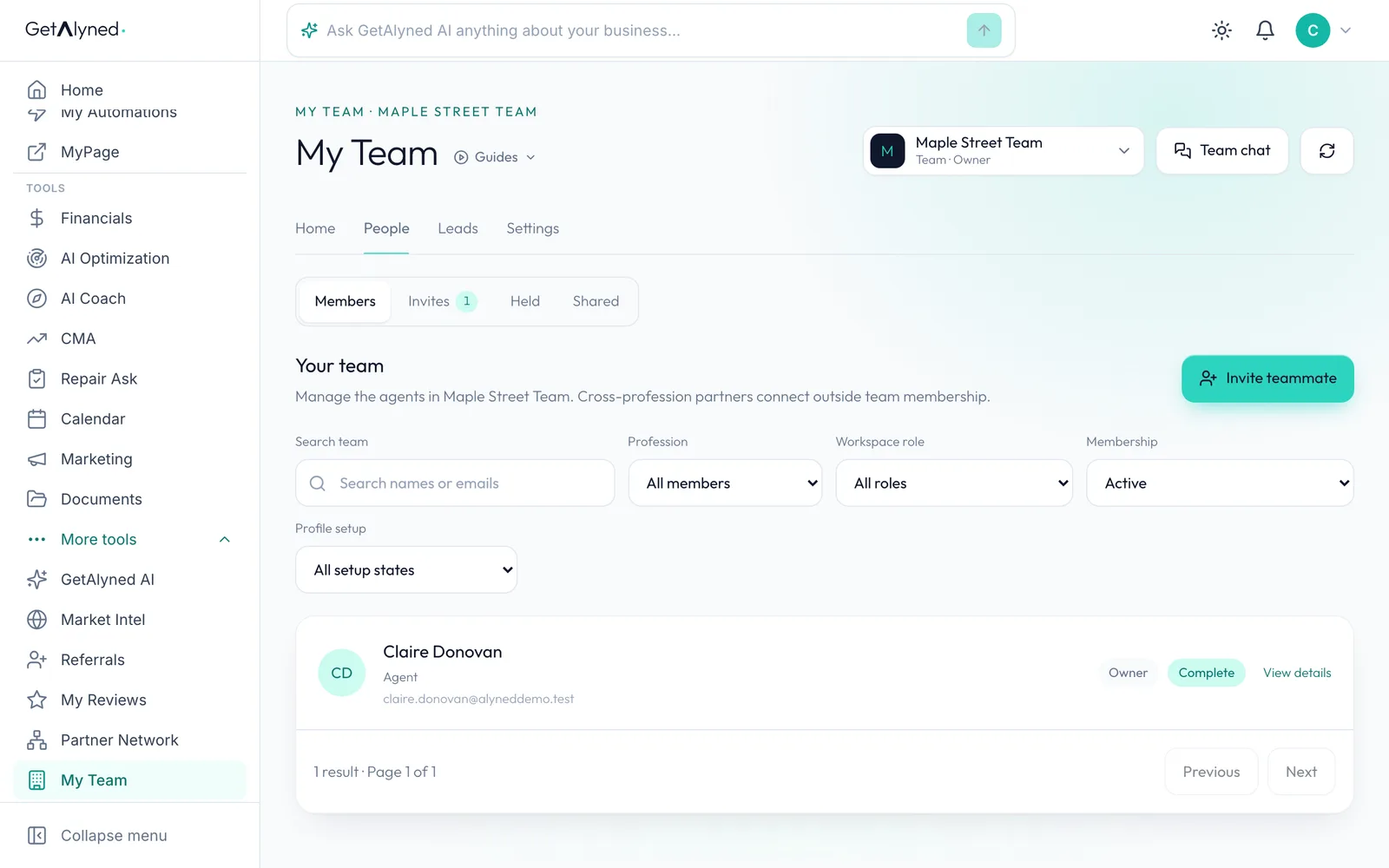
Home is your overview. People holds your members, invitations and what the team shares.
-
Invites
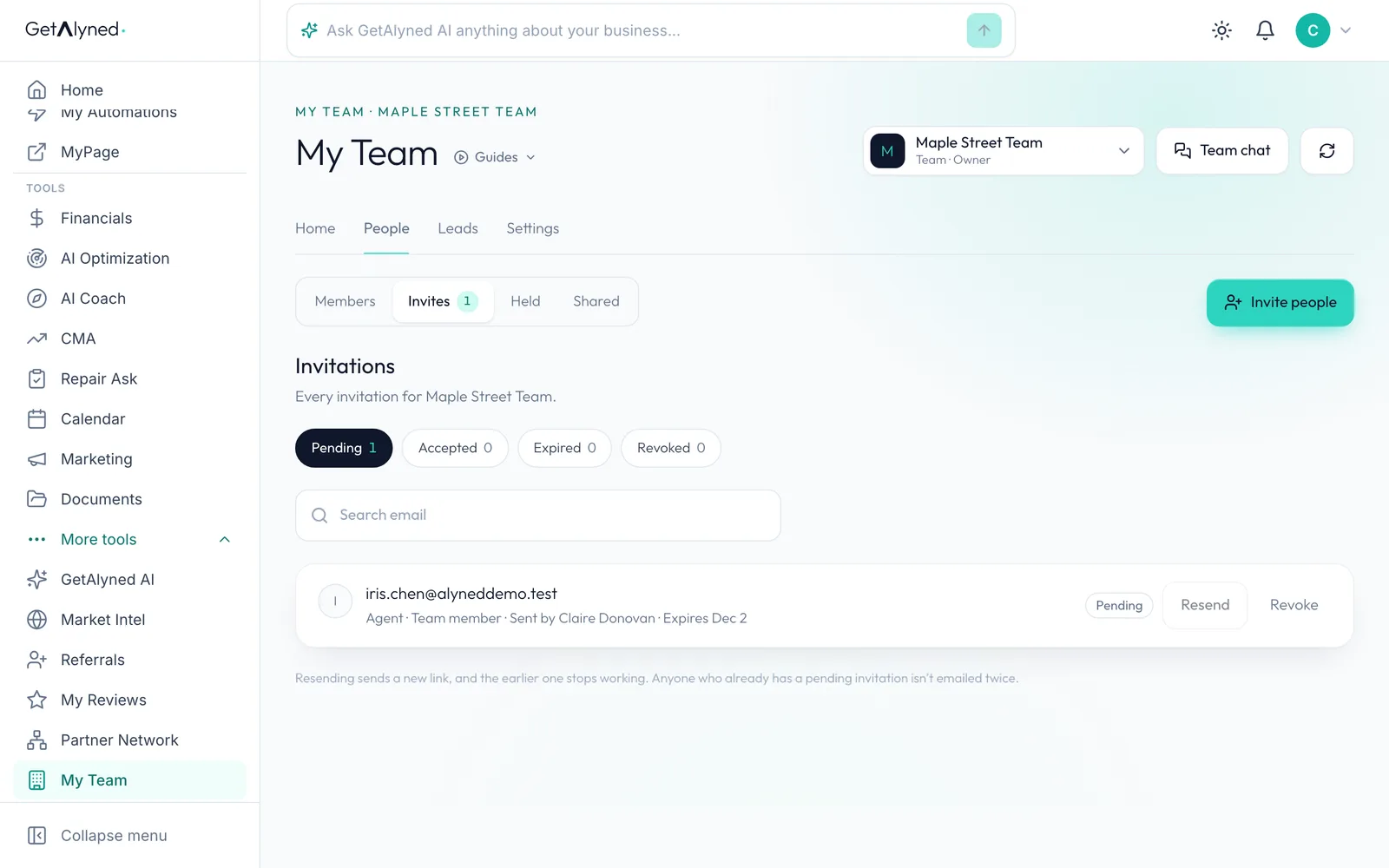
Invites lists every invitation.
-
Invite people
Invite people takes a whole list at once.
-
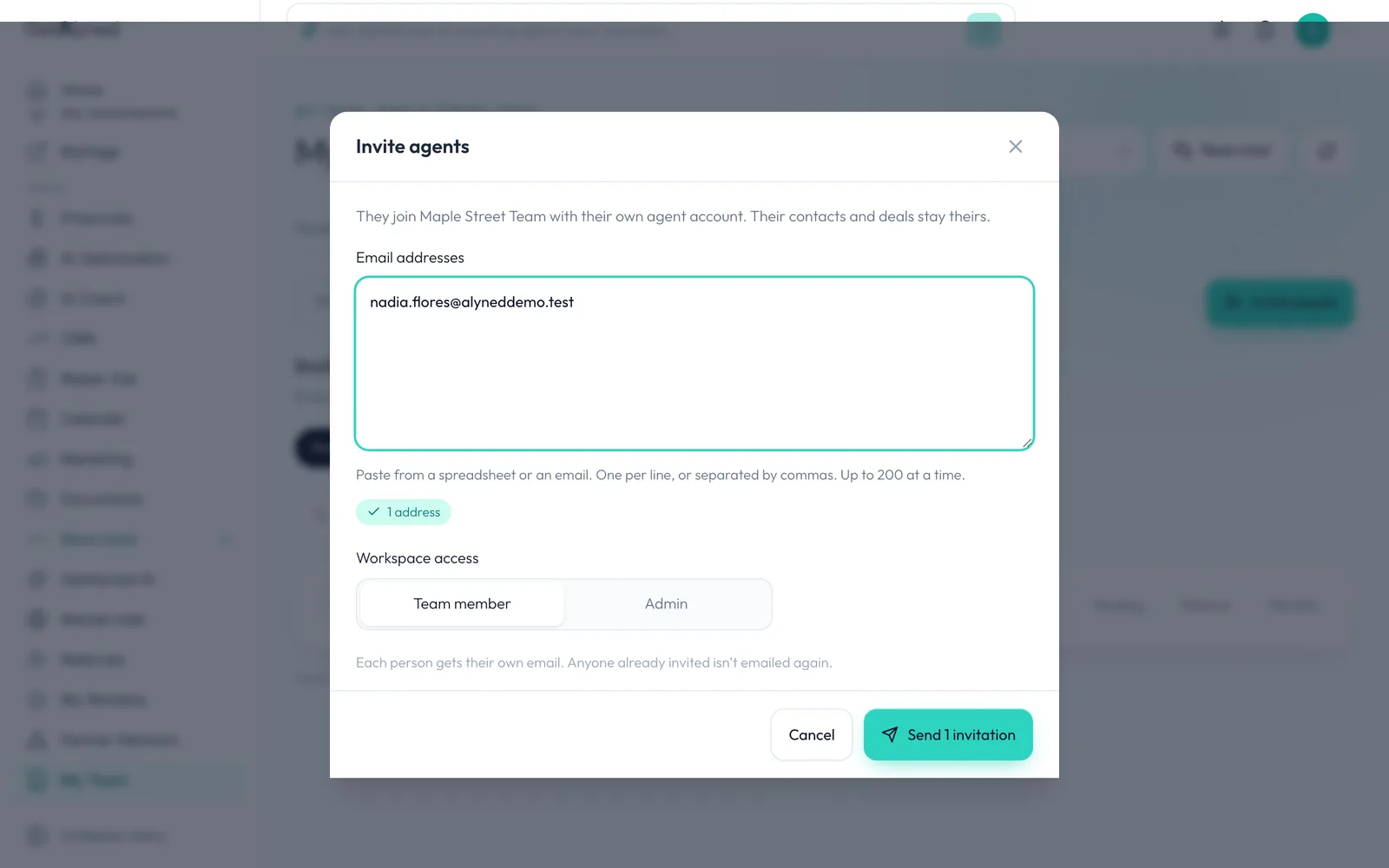
Paste addresses
Paste one address or up to 200, from a spreadsheet or an email, and choose their access. They join with their own account, and their contacts and deals stay theirs.
-
Send
Each person gets their own email. Anyone already invited isn't emailed twice.
-
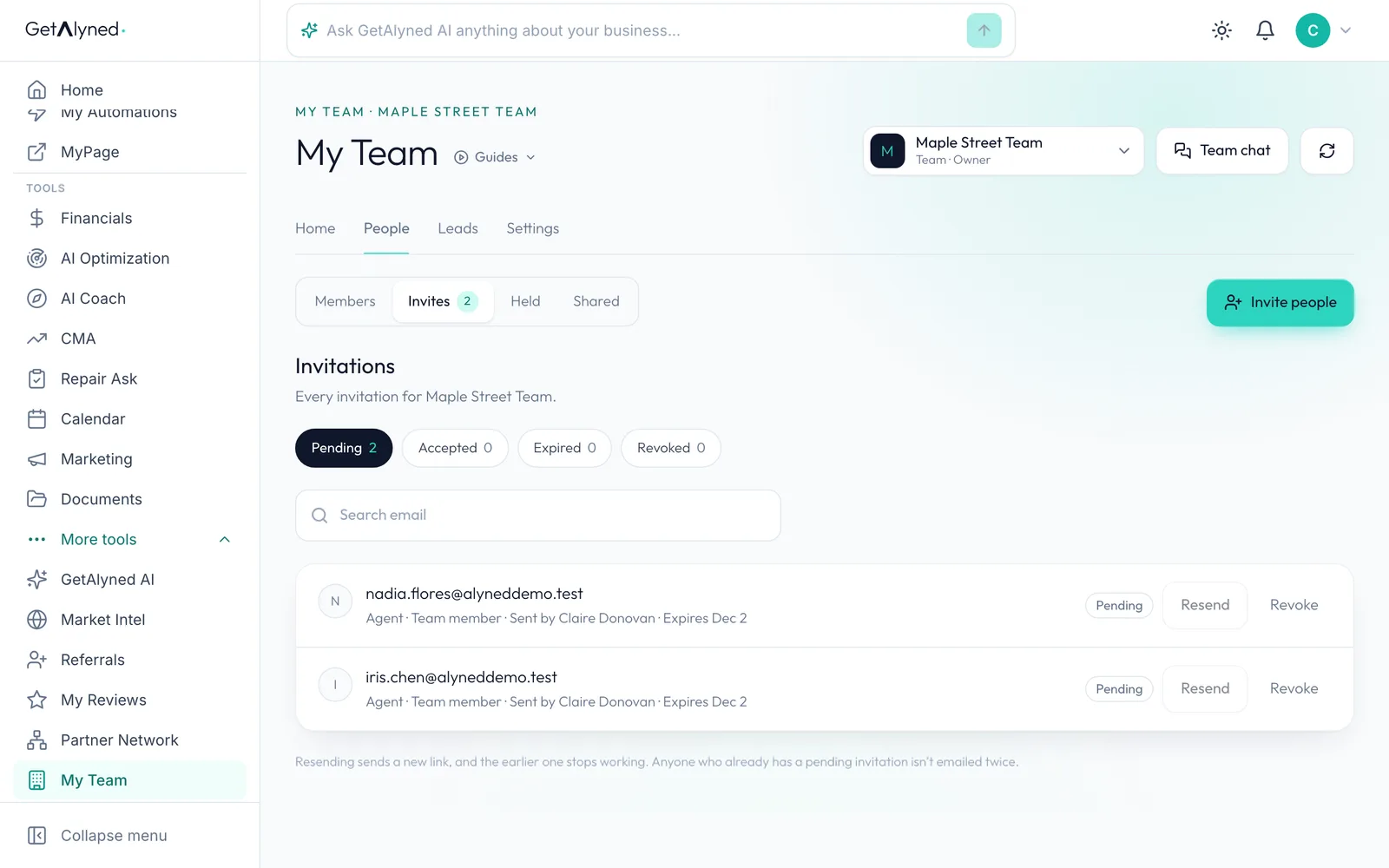
Pending invites
Pending invitations show here with Resend and Revoke. Resending sends a new link, and the earlier one stops working.
-
What they get
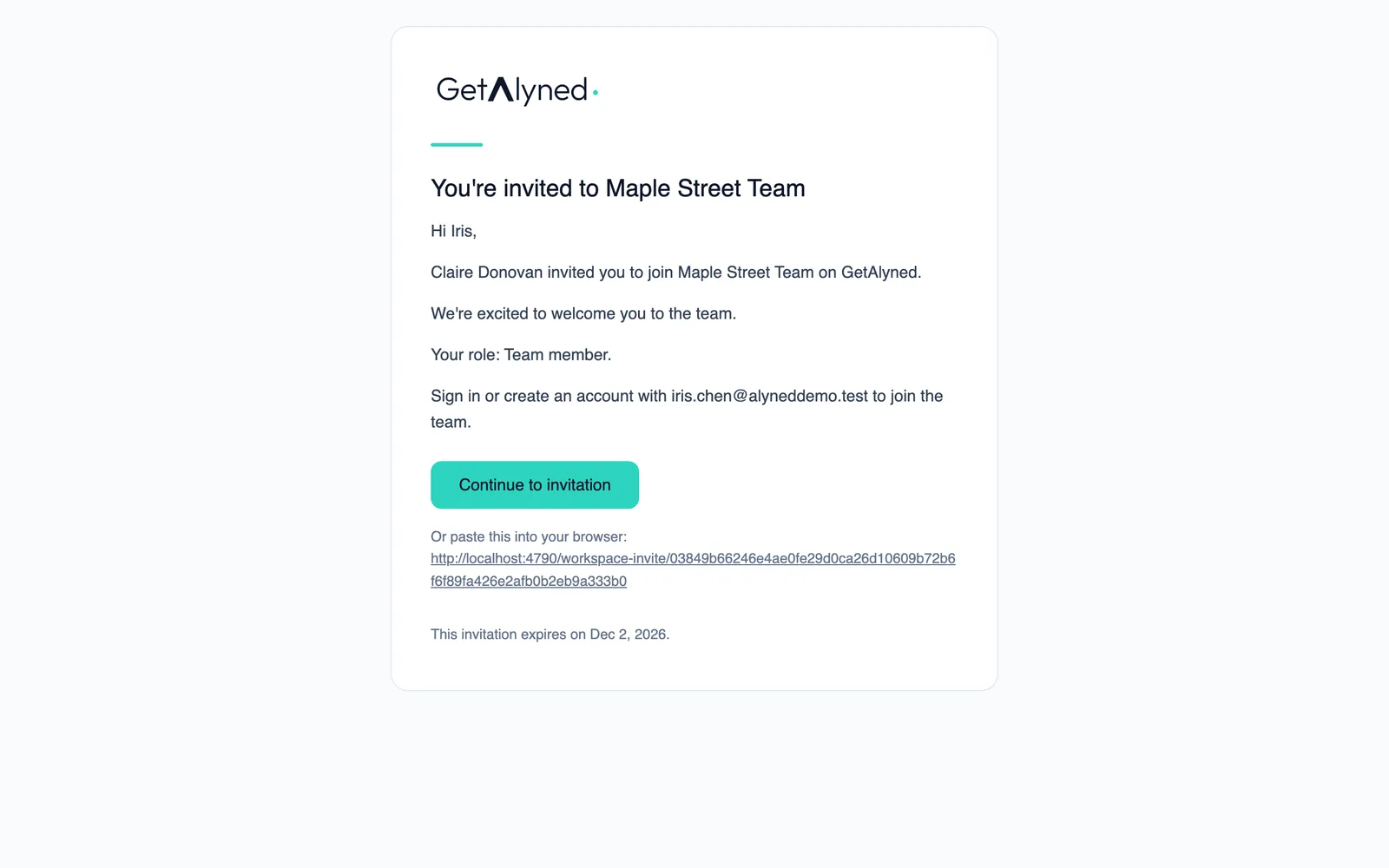
Here's the email your teammate gets. Someone with no account can create one from the invitation.
-
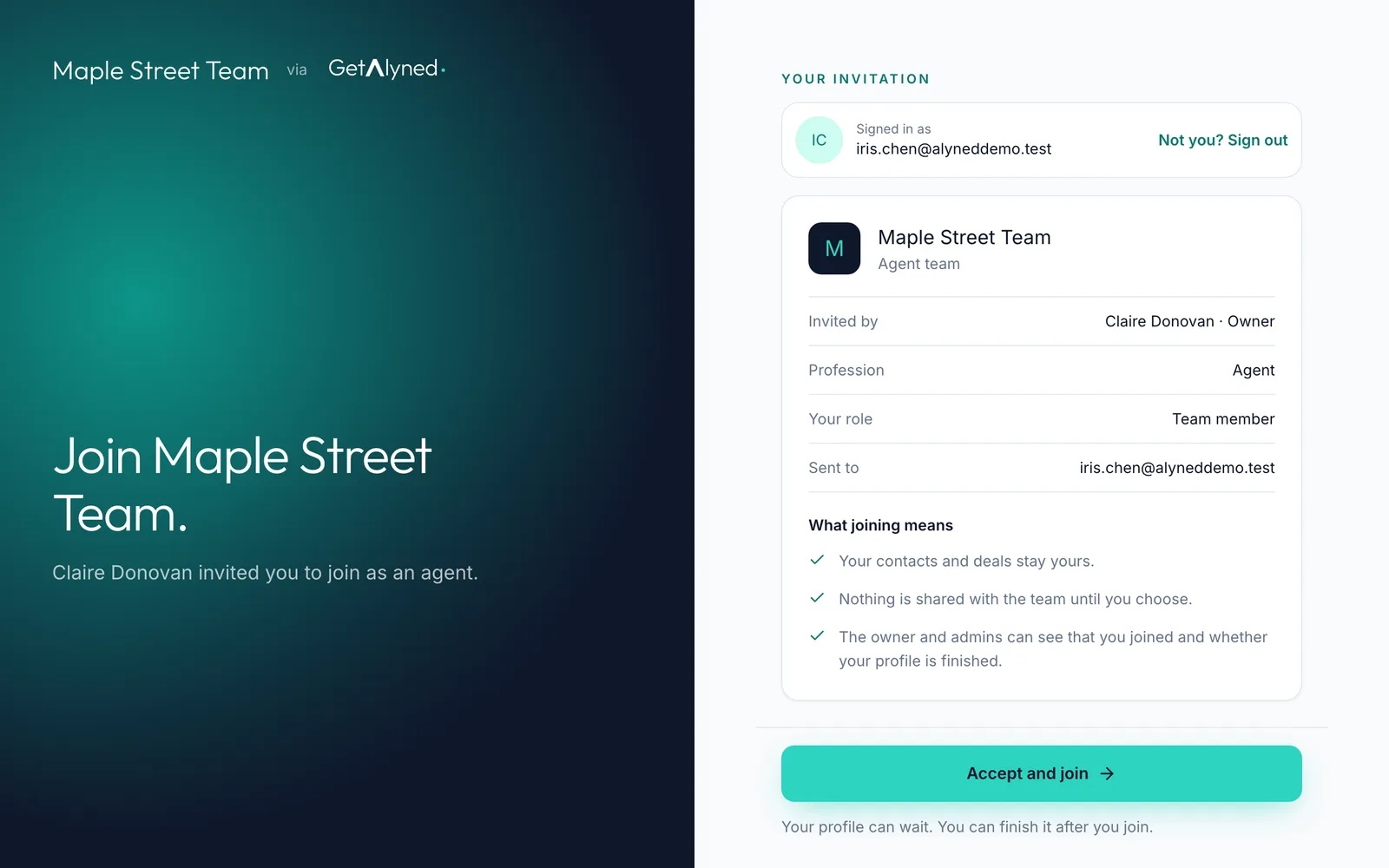
Accept and join
The invitation shows who invited them and their place on the team. Accept and join is one click.
-
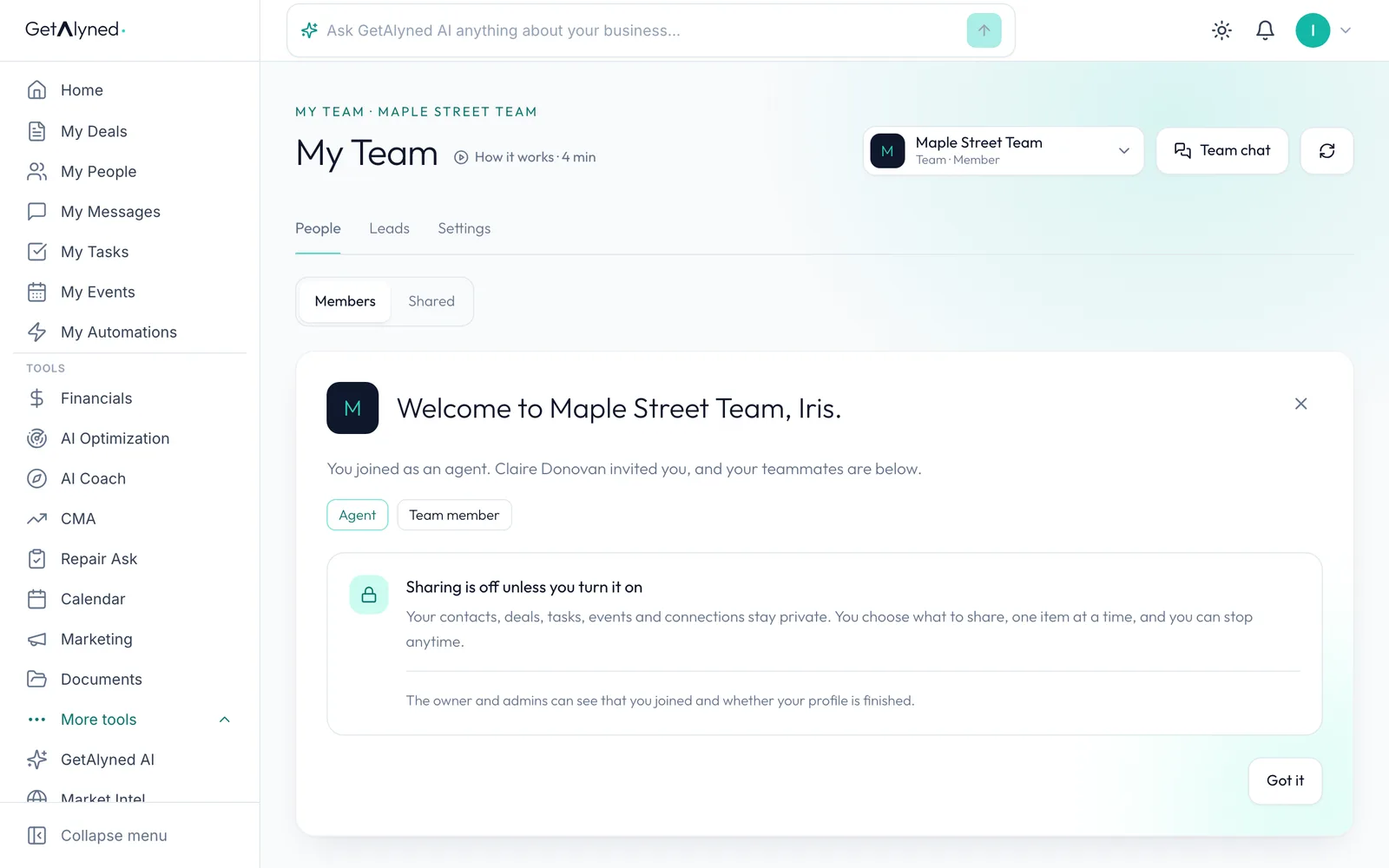
They're in
They land on the team. Nothing of theirs is shared until they choose to share it.
-
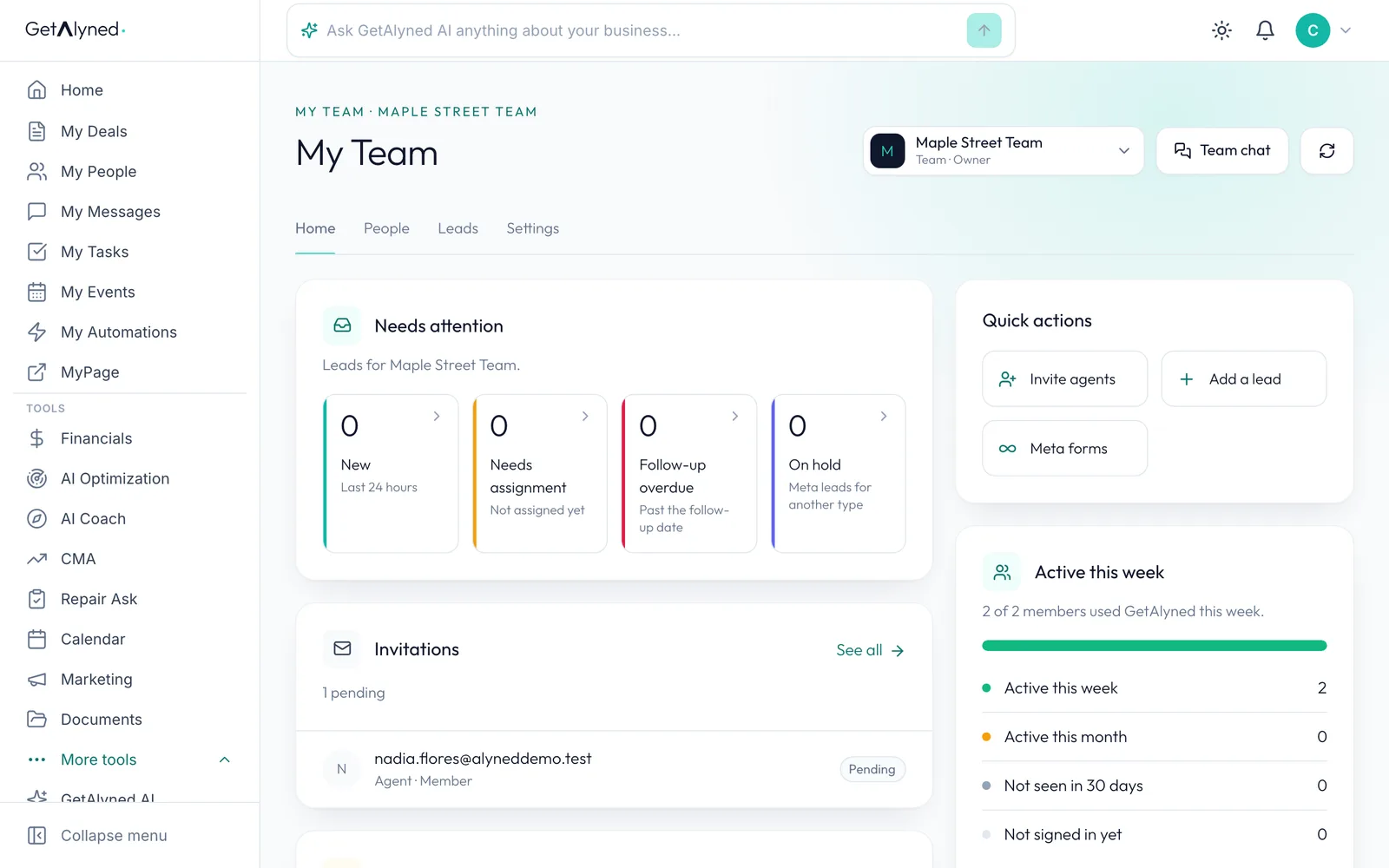
Members
Back on your side, People now lists them with their role.
-
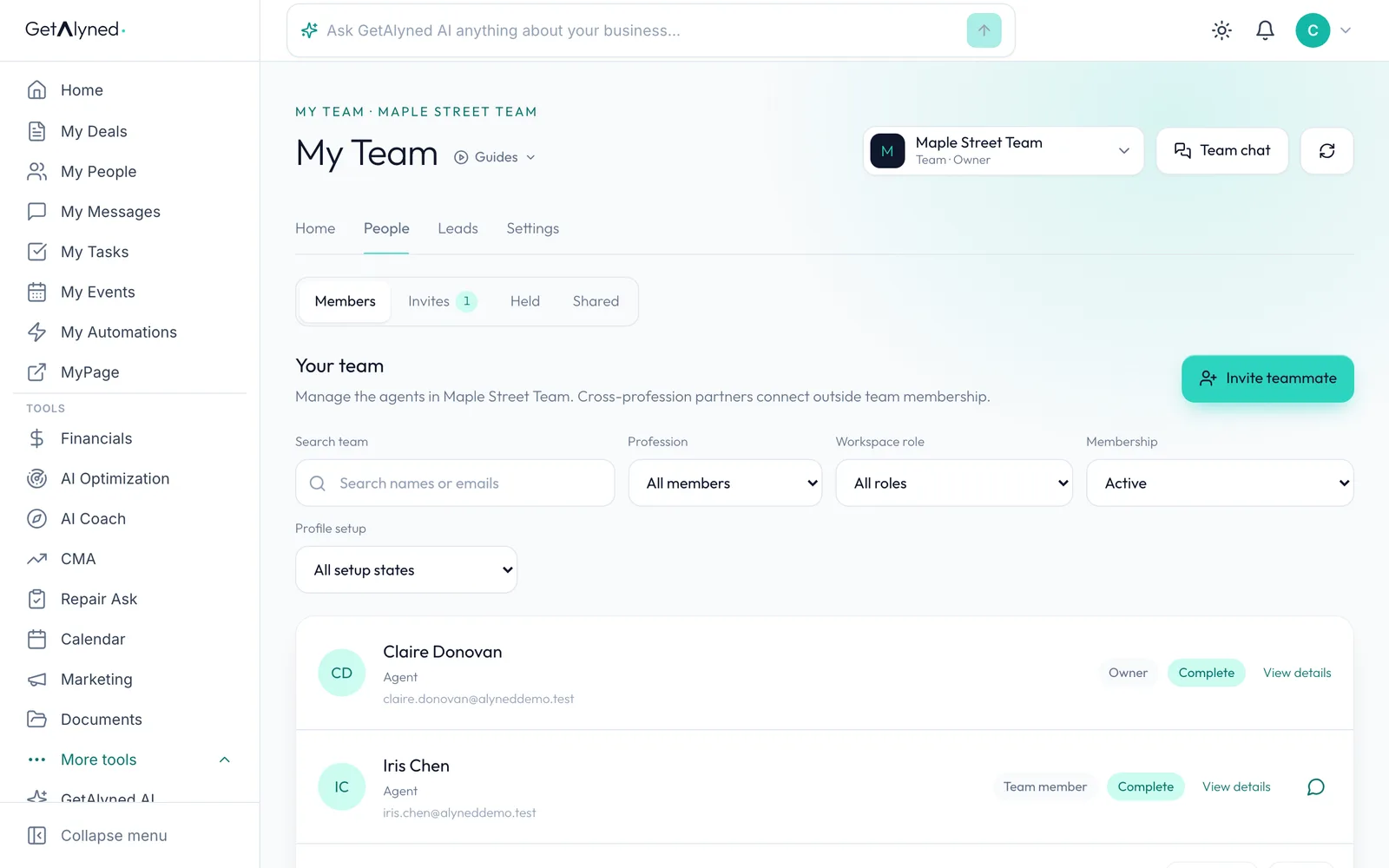
Open a member
Open a member to change their title or role, message them, or suspend or remove them.
-
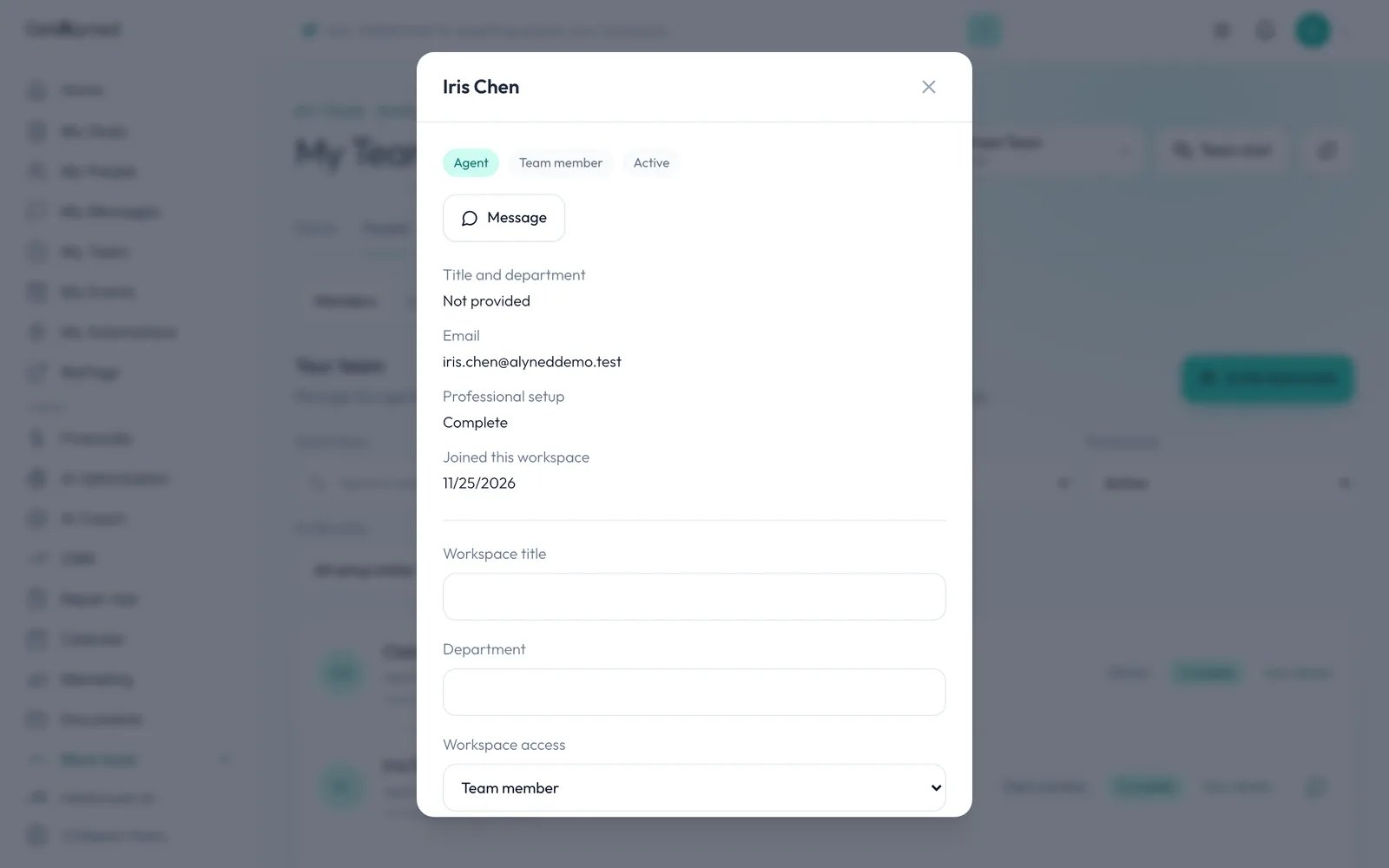
Workspace access
Workspace access is where a role changes: Team member or Admin. Only the owner changes who is an Admin.
-
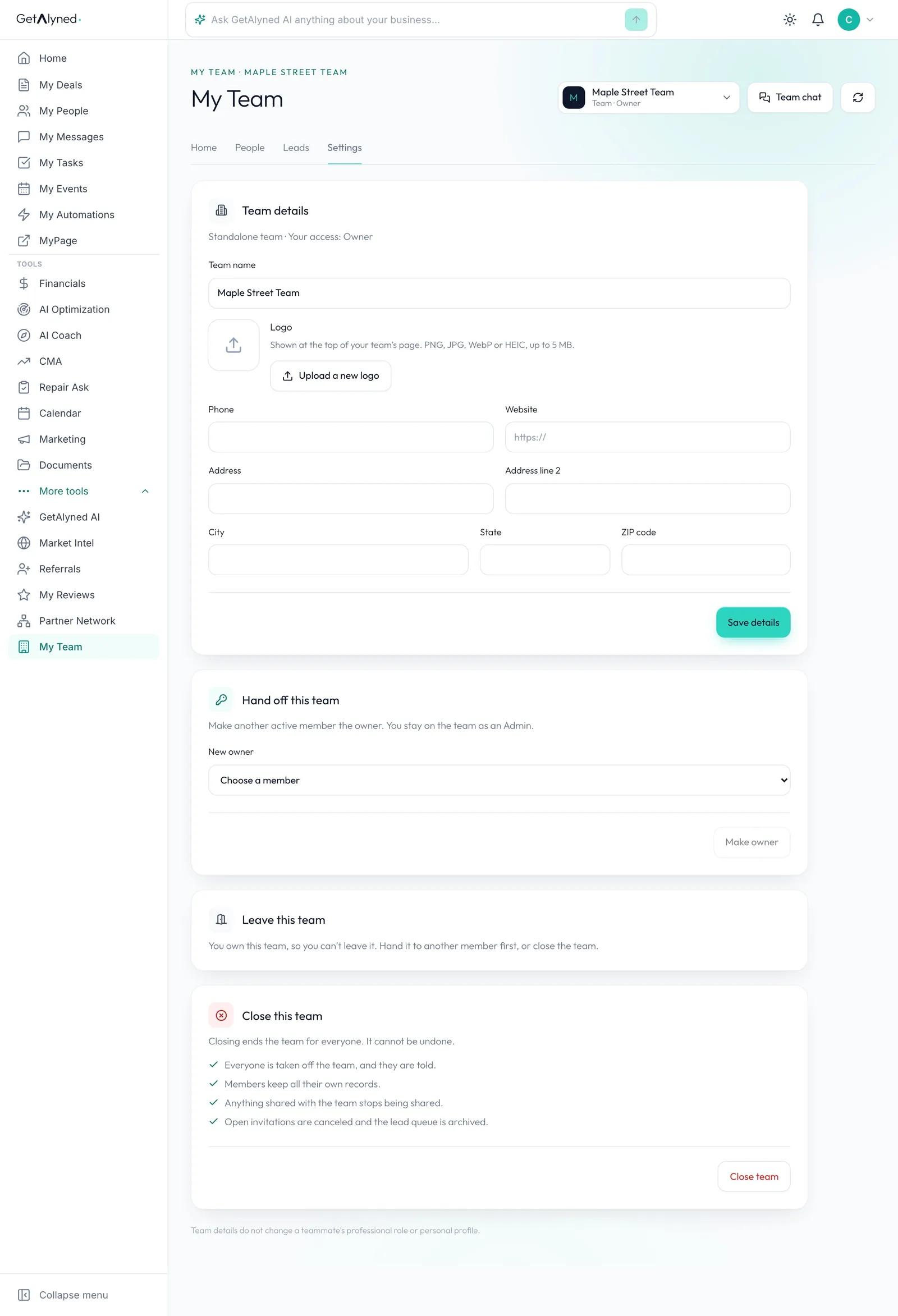
Team details
Team details, for the owner and Admins, holds the name, logo, phone, website and address. Below it, the owner can hand off or close the team.
Related guides
- Share a contact or deal with your team · Everything in GetAlyned is private until you share it. Share one contact or deal at a time with your team's managers, and see exactly what they can read.
- Route and assign leads · Send each new lead to a team or an agent, assign it with a follow-up date, and reassign it if plans change. Every turn stays in the lead's history.
- Invite your loan officer or agents · Invite your loan officer to GetAlyned, or as a loan officer, invite your agents. When they sign up through your invite, you're connected automatically.