Hand off or close your team
For team leads · 2 min
Make another member the owner of your team, or close it for everyone. Everyone keeps their own records.
Watch
Or read it step by step
-
Settings
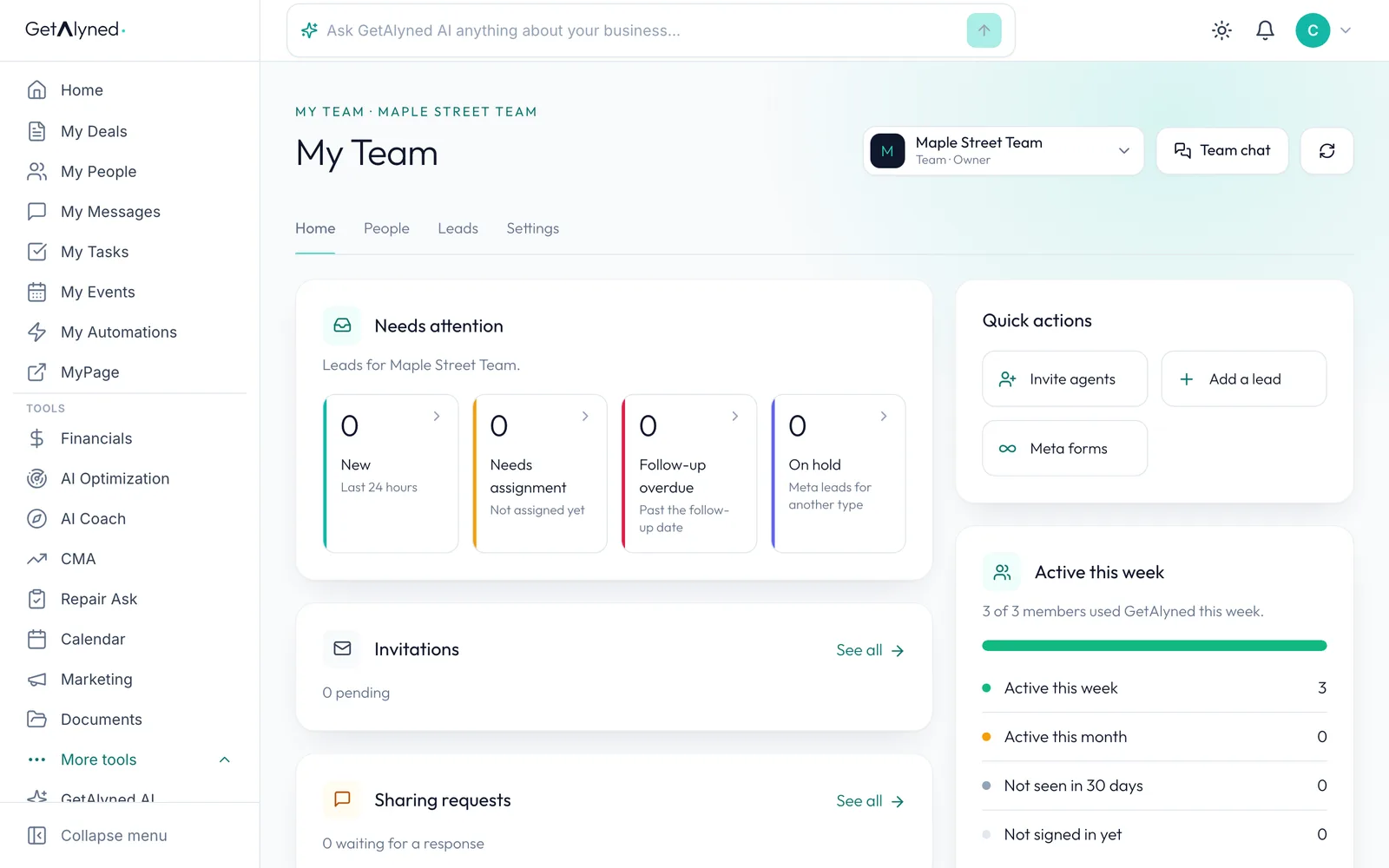
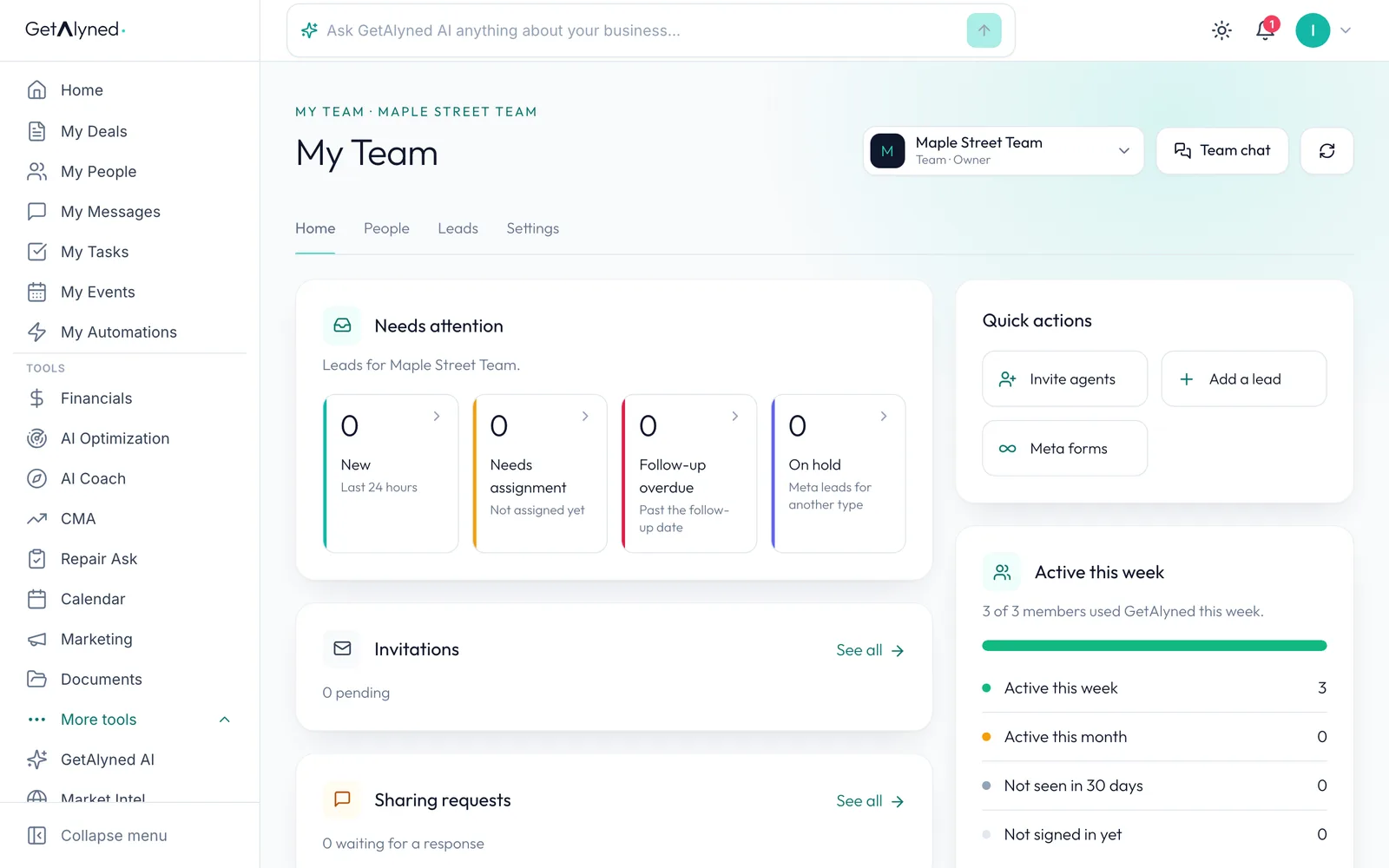
Open My Team, then Settings.
-
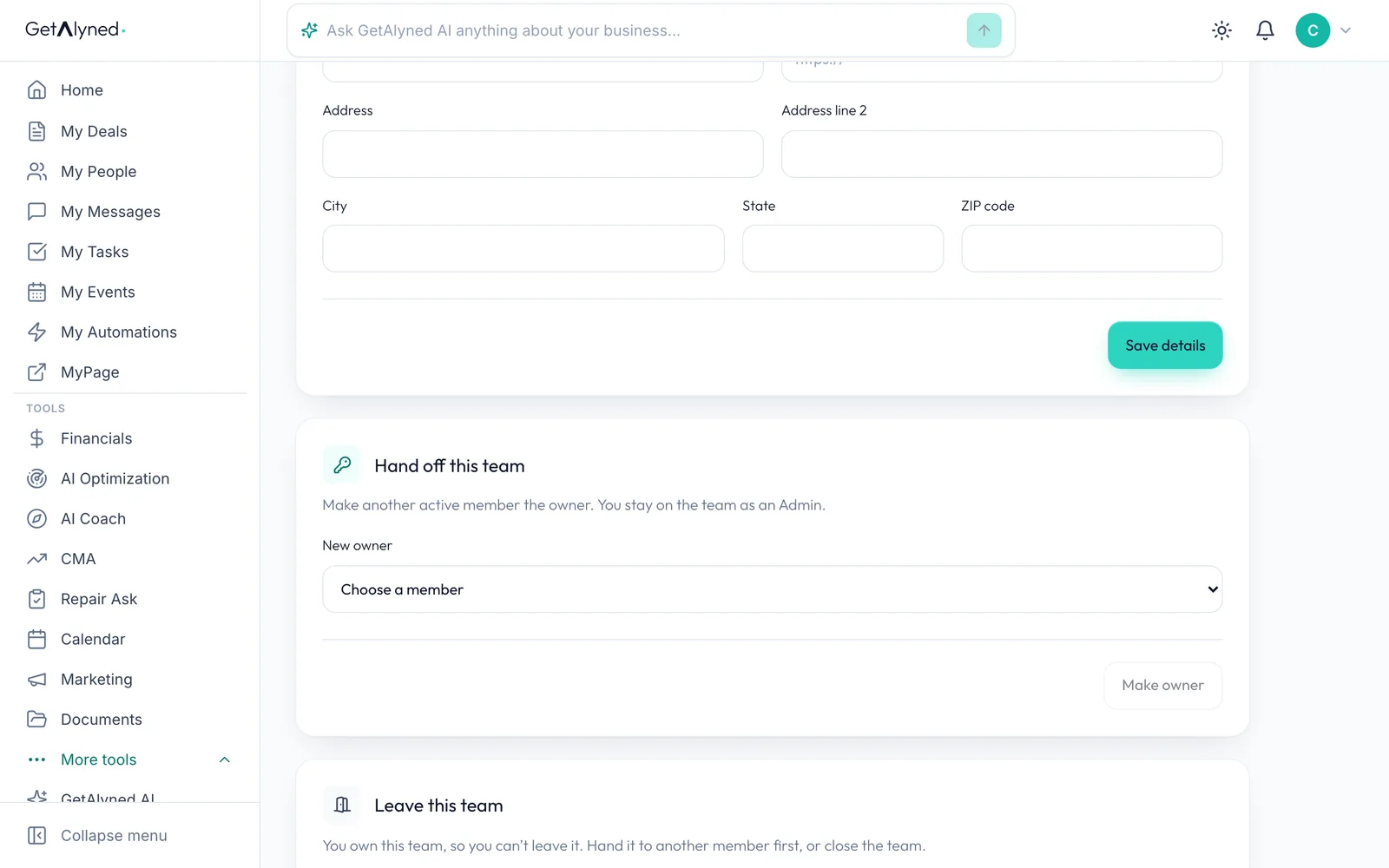
Hand off this team
Hand off this team makes another active member the owner. You stay on the team as an Admin.
-
New owner
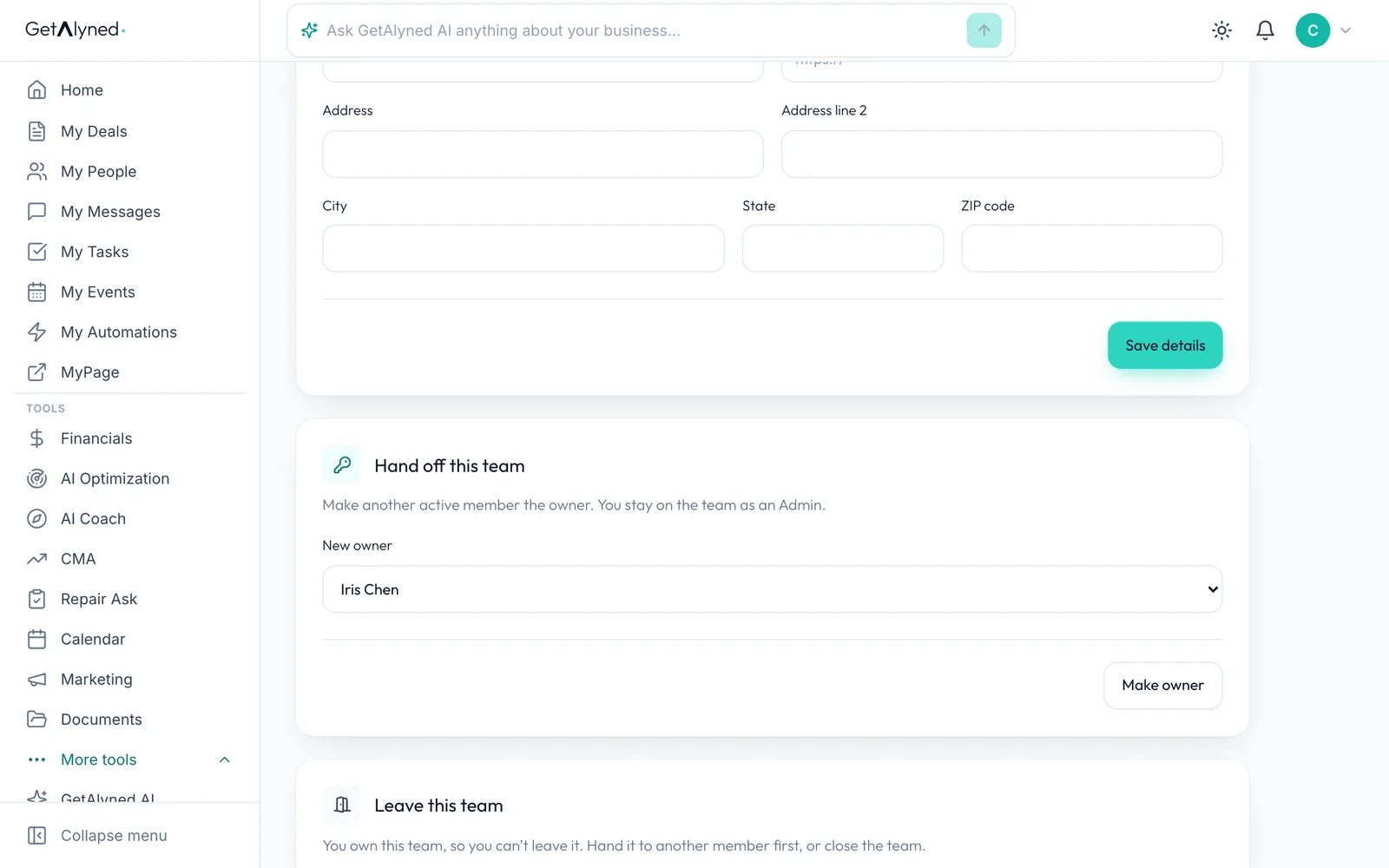
Pick the new owner. Only an active member can own the team.
-
Make owner
Click Make owner.
-
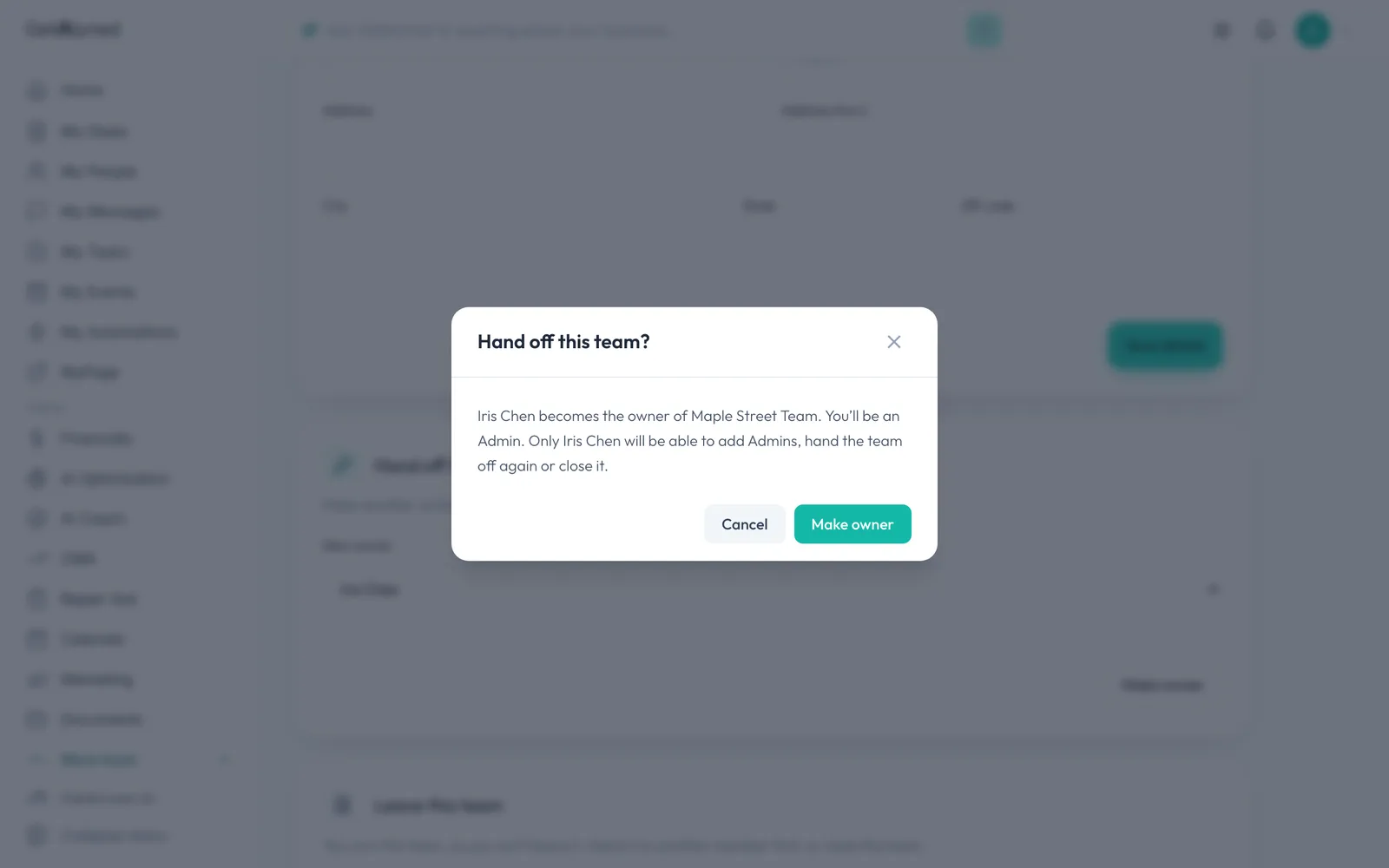
Confirm
Confirm. The new owner is told, and only they can add Admins, hand the team off again or close it.
-
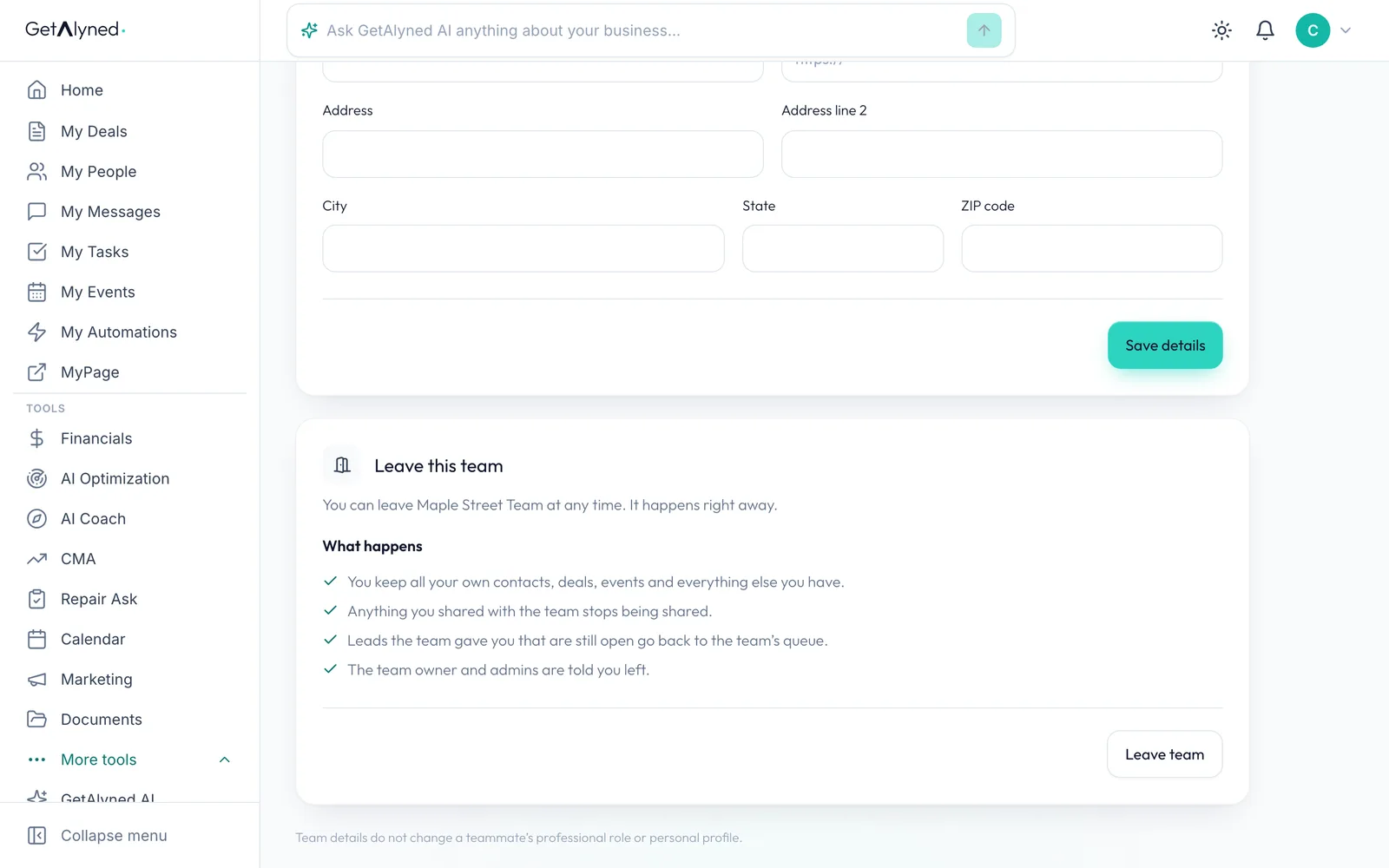
You're an Admin
You're an Admin now, so Leave this team is open to you too.
-
Closing a team
Only the owner closes a team. Here, the new owner opens Settings.
-
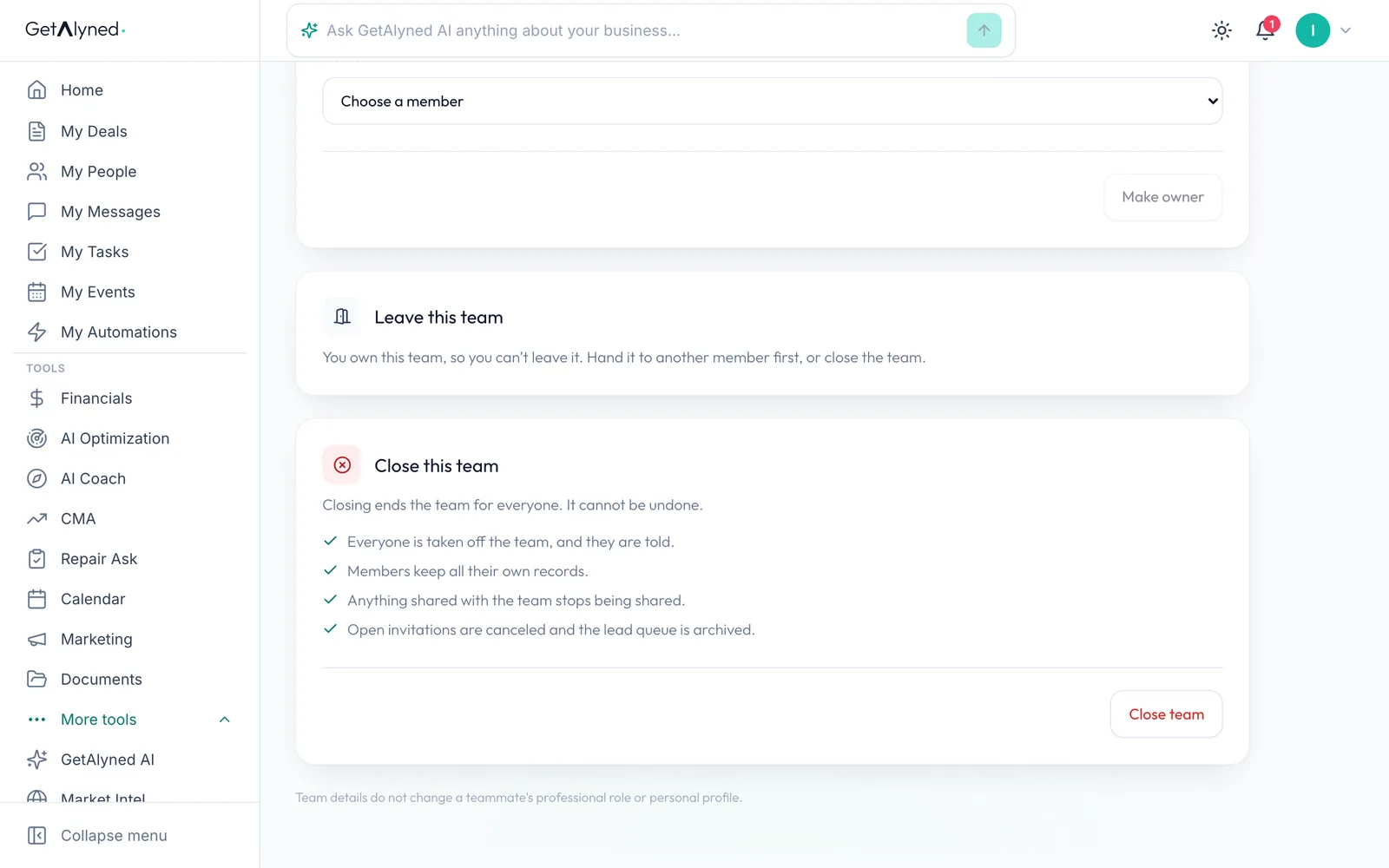
Close this team
Close this team ends the team for everyone. Everyone keeps their own records, sharing stops, open invitations are canceled and the lead queue is archived.
-
Close team
Click Close team.
-
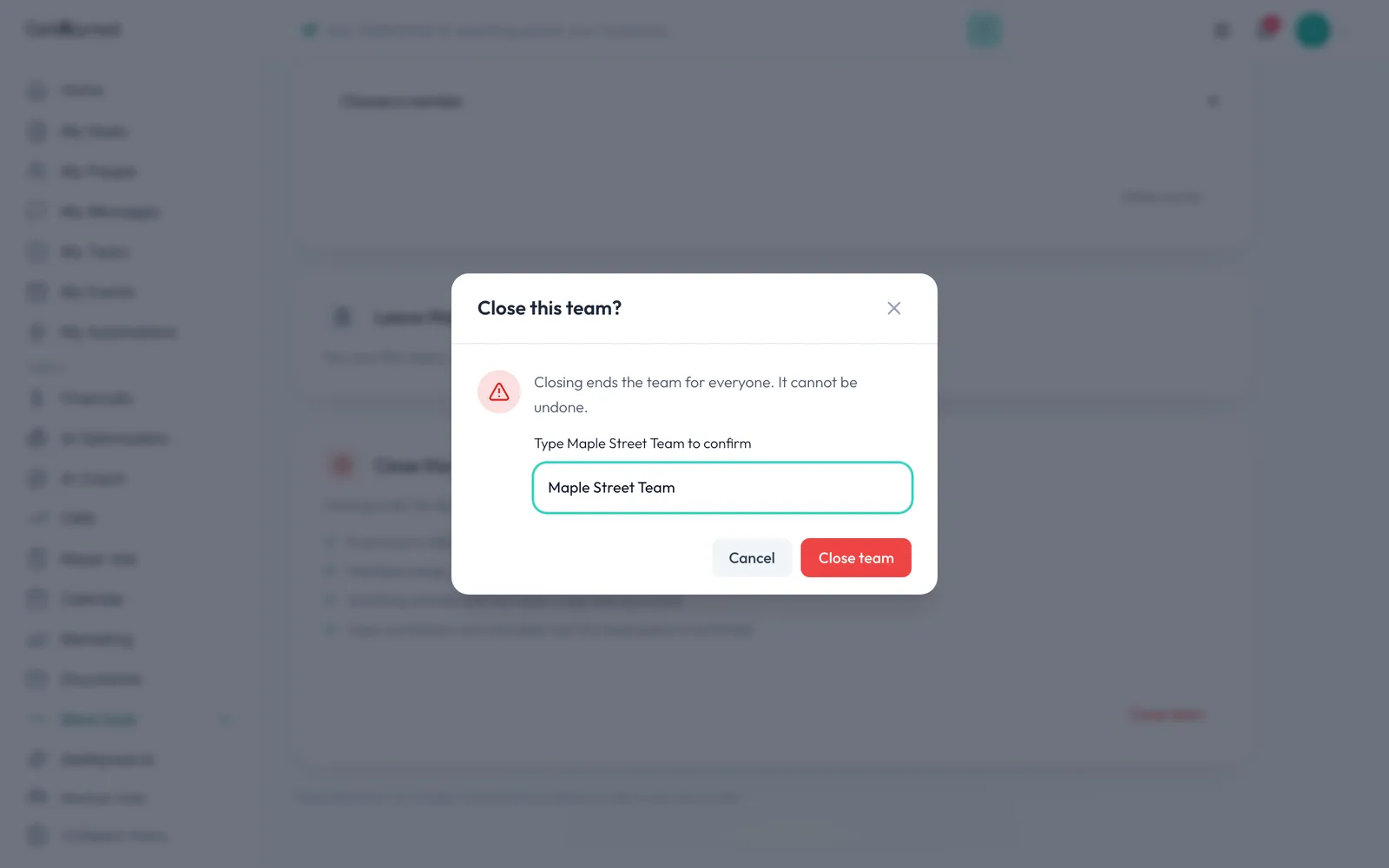
Type the name
Type the team's name, exactly as shown.
-
Confirm
Confirm. It can't be undone.
-
Everyone is told
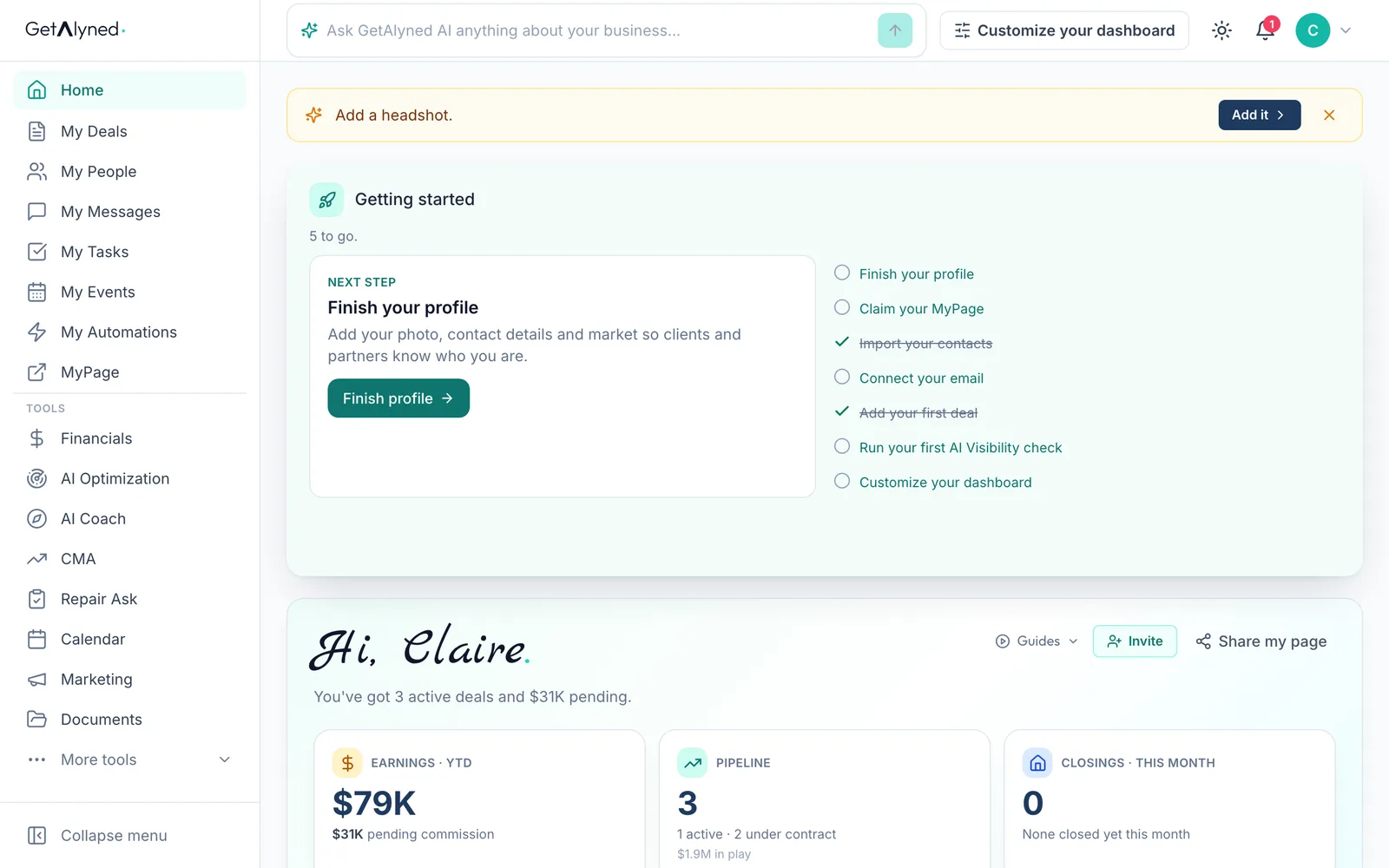
Everyone on the team is told, in the app and by email.
-
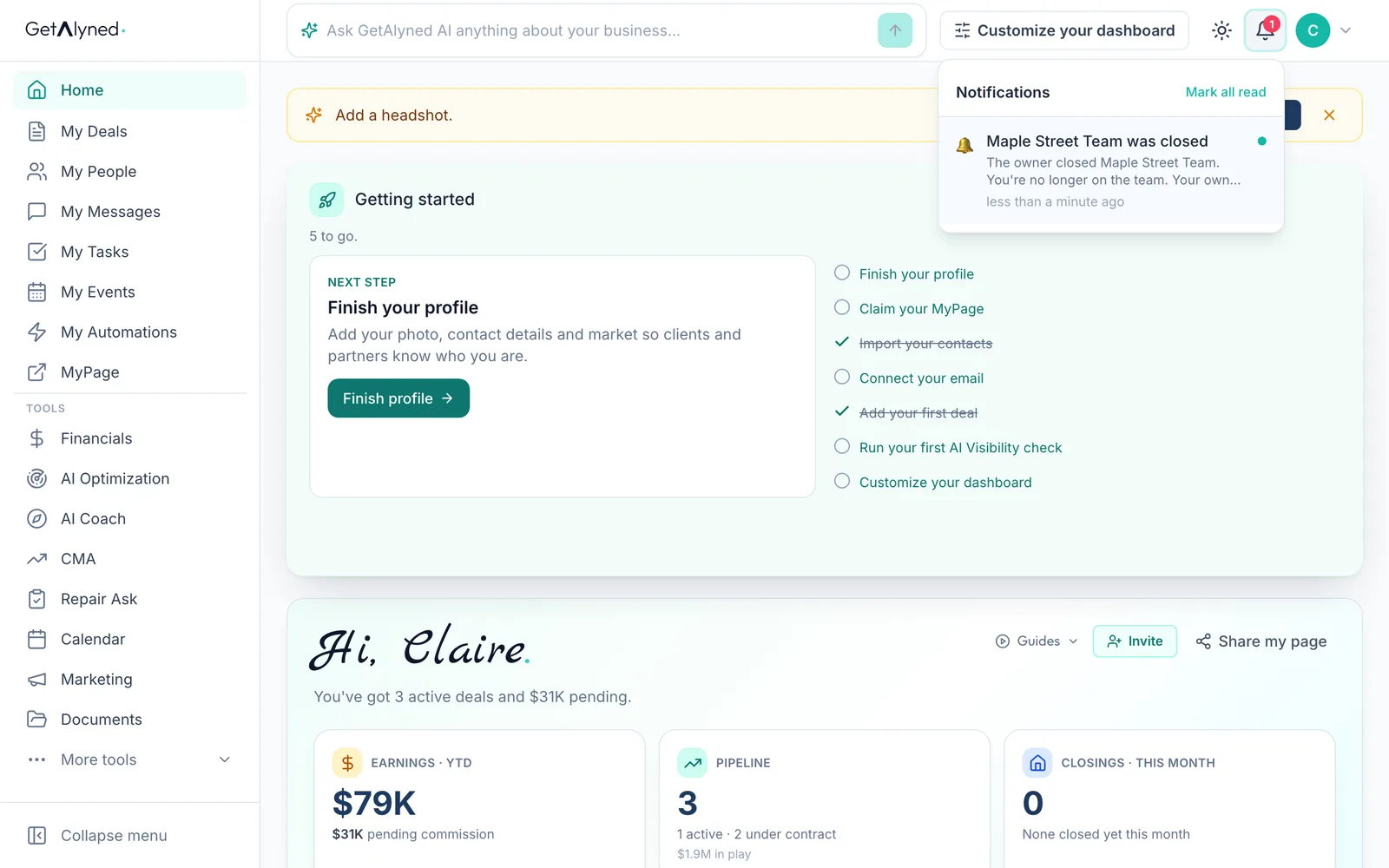
The notice
The notice says the team was closed. Contacts that came from team leads go back to the member who was working them.
Related guides
- Create a team · Start a team, invite your teammates, and set who can do what. Each person keeps their own account, plan, contacts and deals.
- Leave a team · Leave a team from its Settings. It happens right away, and everything of your own stays with you.
- Route and assign leads · Send each new lead to a team or an agent, assign it with a follow-up date, and reassign it if plans change. Every turn stays in the lead's history.